
Have a Question?
How to uninstall Monitask Stealth App from employees’ computers
If you find stealth mode is not for you, you can uninstall the app. In this case, we highly recommend trying the Time Tracking mode to monitor your team performance.
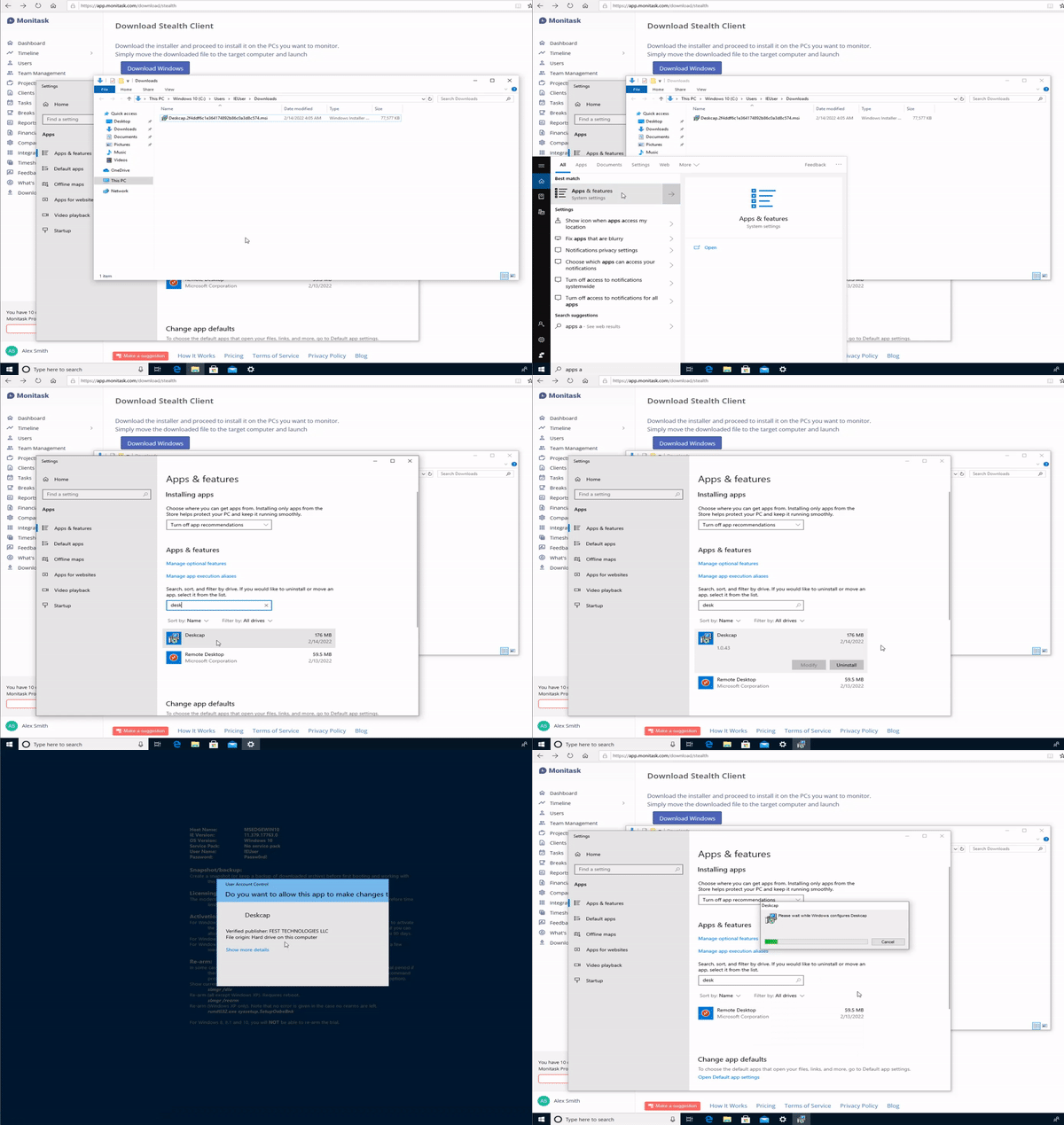
Uninstall the Monitask client from a Windows PC
- Open Apps & features Settings, right-click on the Start menu > Apps & features
- In the search bar, type Deskcap
- Click on a line in the search results
- Select Uninstall
Alternatively, you can right-click on the file used to install the client and select Uninstall.
How to Uninstall Monitask Stealth Mode Using the Command Line on Windows
- Click Start menu, (in the search box, type) cmd,
- Right-click on a search result and choose Run as Administrator.
- In the command prompt, input — msiexec /x %path\setup.msi%
- Press Enter to start the Uninstall process.
If you need additional help please feel free to reach out to our support team [email protected].
How to Uninstall Monitask Stealth Mode on macOS
To remove Monitask Stealth Mode from a Mac, follow these steps:
- Open Terminal on your Mac. You can find it under Applications → Utilities → Terminal.
- Copy and paste the following command:
sudo rm -rf "/Library/Application Support/DeskcapApp/Deskcap.MacApp" - Press Enter to execute the command.
- Enter your Mac administrator password if prompted.
- Restart your Mac.
Important: This command permanently removes the specified application directory. Make sure you enter the command exactly as shown. This procedure should be verified with our technical support team to ensure all Monitask Stealth Mode components are removed.
If you need additional assistance, please contact our support team at [email protected].
How to Uninstall Monitask Stealth Mode on Linux (Ubuntu)
To uninstall Monitask Stealth Mode from an Ubuntu computer, follow these steps:
- Open Terminal on your computer.
- Navigate to the folder containing the Monitask installer file.
- Make the installer executable by running the following command:
chmod +x <installer_path>Replace<installer_path>with the actual path to your installer file. - Run the installer.
- In the installer window, click Uninstall.
- Follow the on-screen instructions to complete the uninstallation process.
If you need additional assistance, please contact our support team at [email protected].