How to Detect Employee Monitoring Software on Your Work Computer

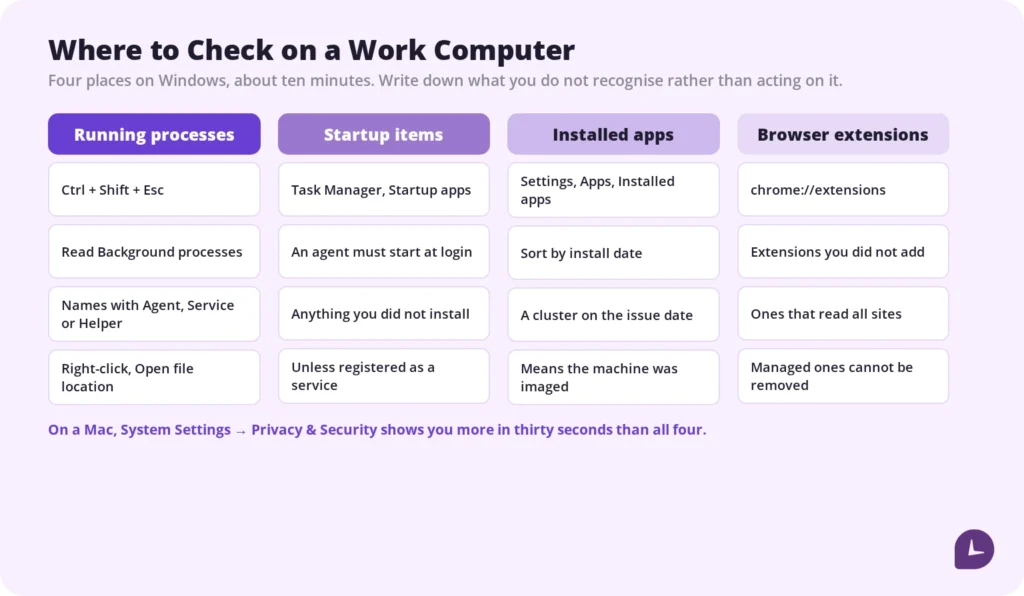
Employee monitoring software is an agent installed on a work device that records activity — time worked, applications and websites used, and often periodic screenshots — and sends it to a dashboard your employer can see. It is also called employee tracking software, user activity monitoring, or productivity monitoring. To check whether it is running on your machine, look in four places: your running processes, your installed applications, your startup items, and your browser extensions. On a Mac, the privacy permissions screen is faster than all four.
Before you start, one thing is worth knowing: on a company-managed device, none of these checks is conclusive. Monitoring agents are usually installed with administrator rights and allowed through security software by the same IT team that deployed them. This article covers where to look, what each check does and does not prove, what your employer is legally required to tell you, and what to do with the answer.
Key takeaways
- Four places to check on Windows: Task Manager, installed programs, startup items, browser extensions. On macOS, Privacy & Security permissions show you more in thirty seconds than any of them.
- No check is conclusive without administrator rights, and most employees do not have them on a work device.
- A company-issued laptop enrolled by IT almost certainly has some form of management software on it. That is the starting assumption, not the exception.
- Most US employers are legally allowed to monitor devices they own. Three states require them to tell you first, and Connecticut’s rules change on 1 October 2026.
- Do not uninstall or disable anything you find. Ask instead — it is faster, and it does not put your job at risk.
What Employee Monitoring Software Collects
Most workplace monitoring records the shape of your work rather than its content: hours worked, active and idle time, which applications and websites were open, and on many platforms a screenshot every few minutes. Responsible tools stop there. What they collect, and what they leave alone, is a configuration choice your employer makes.
| Commonly collected | Usually not collected on properly configured platforms |
|---|---|
| Time clocked in, active and idle minutes | The content of what you type |
| Applications opened and time in each | Webcam or microphone recordings |
| Websites visited during working hours | Activity outside your scheduled hours |
| Periodic screenshots | Anything on your personal devices |
| First and last activity of the day | Personal accounts excluded by policy |
The second column is not a legal guarantee. It describes how mainstream employee monitoring software is normally configured, and the gap between that norm and what your employer actually switched on is exactly what the rest of this article helps you find out.
Boost your business productivity
Track performance and streamline teamwork
How to Check a Windows Computer
Open Task Manager with Ctrl + Shift + Esc and read the Background processes list, then check Startup apps in the same window. Follow with Settings, Apps, Installed apps, and finally your browser’s extensions page. Four places, about ten minutes. Write down anything you do not recognise rather than acting on it.
Running processes
Press Ctrl + Shift + Esc, select More details if you get the compact view, and open the Processes tab. Read the Background processes section rather than the apps you opened yourself. Right-click anything unfamiliar and choose Open file location to see where it was installed from, then search the name before drawing conclusions.
Monitoring agents tend to have unremarkable names — something with Agent, Service, Helper or Client in it — and they run continuously rather than when you launch them.
Startup items
In Task Manager, open the Startup apps tab. A monitoring agent has to start when you log in, so it will be here unless it is registered as a system service. Anything enabled at startup that you did not install yourself is worth writing down.
Installed applications
Open Settings, then Apps, then Installed apps, and sort by install date. Two things are informative: software you do not recognise, and a cluster of items installed on the same day your laptop was issued. The second pattern usually means the machine was imaged by IT before it reached you.
Browser extensions
Some monitoring works through the browser rather than the operating system. Open your extensions page — chrome://extensions in Chrome, edge://extensions in Edge — and look for extensions you did not add, particularly ones that can read data on all websites. Extensions installed by policy usually cannot be removed and are labelled as managed by your organisation.
How to Check a Mac
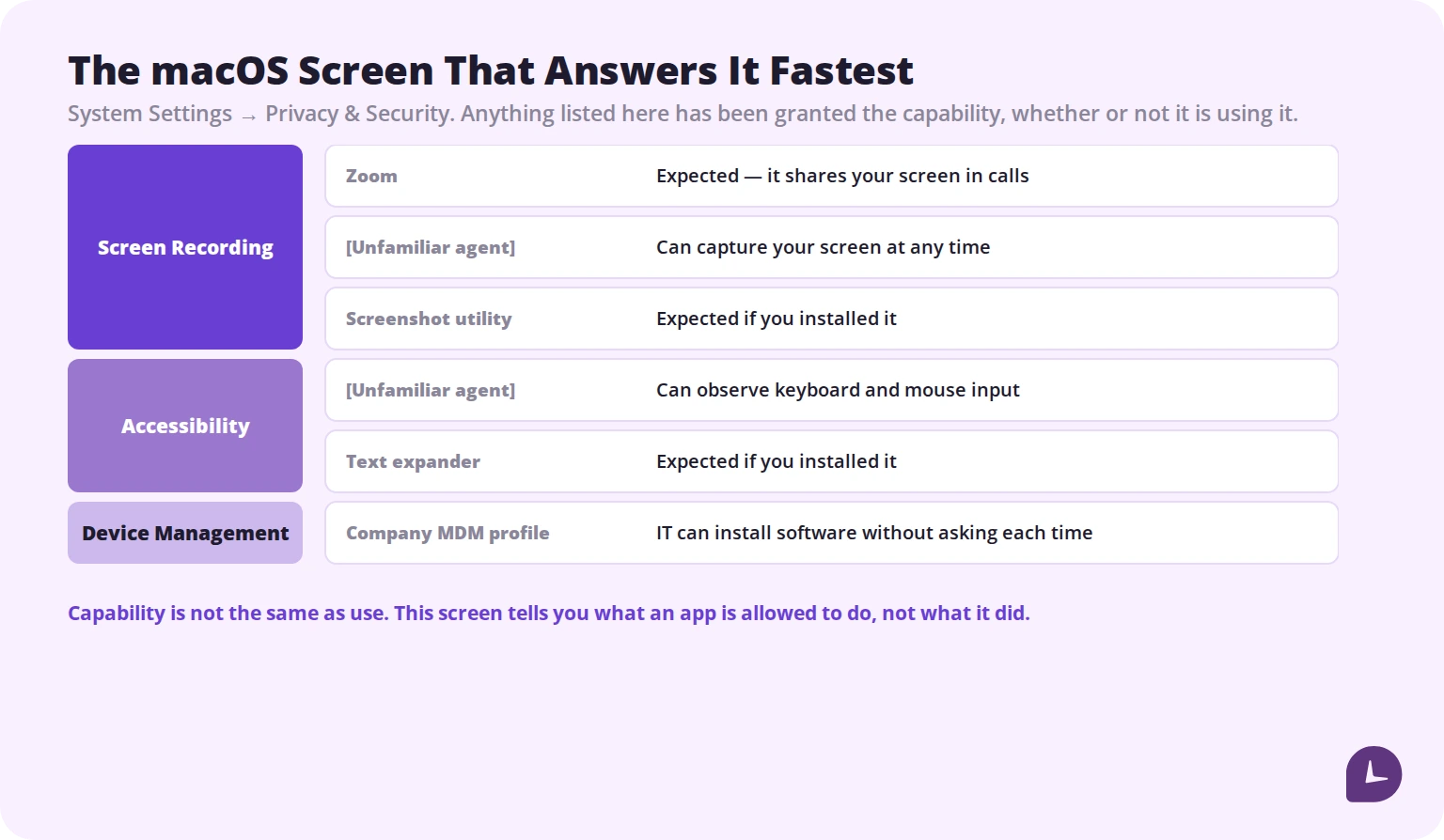
On macOS, start with System Settings, Privacy & Security, and read the Screen Recording and Accessibility lists. Any application allowed there can capture your screen or observe your keyboard and mouse. This single screen tells you more than a process list, and it takes under a minute.
| Where to look | What it shows |
|---|---|
| Privacy & Security → Screen Recording | Apps permitted to capture your screen |
| Privacy & Security → Accessibility | Apps permitted to observe keyboard and mouse input |
| General → Login Items | What starts automatically when you log in |
| Activity Monitor (CPU tab) | Everything currently running, including background agents |
| System Settings → Device Management | Whether the Mac is enrolled in an MDM profile |
The Device Management entry is the one most people miss. If it exists, your Mac was enrolled by your employer before you received it, and IT can install software on it without asking you each time. That alone does not tell you what is installed — but it tells you the mechanism is there.
What Each Check Proves, and What It Misses
Every method above has a ceiling. Most need administrator rights you probably do not have on a work device, and monitoring agents are typically allowed through the same antivirus your company installed. Finding nothing is not evidence that nothing is running.
| Check | What it proves | Where it stops | Admin rights needed |
|---|---|---|---|
| Running processes | An agent is running under a readable name | Stealth agents are built not to be recognisable here | No |
| Installed applications | Something was installed, and roughly when | Agents installed as system services may not appear | No |
| Startup items | Something launches at login | Services registered outside the startup list are hidden | No |
| Browser extensions | Browsing is being filtered or logged | Covers only browser activity, not the device | No |
| macOS privacy permissions | An app can record your screen or input | Tells you capability, not whether it is in use | No |
| Antivirus or anti-spyware scan | Detects unapproved tracking tools | Company-approved tools are whitelisted and will not flag | Usually |
| Network traffic analysis | An application is sending data outward | Requires installing software, and traffic is usually encrypted | Yes |
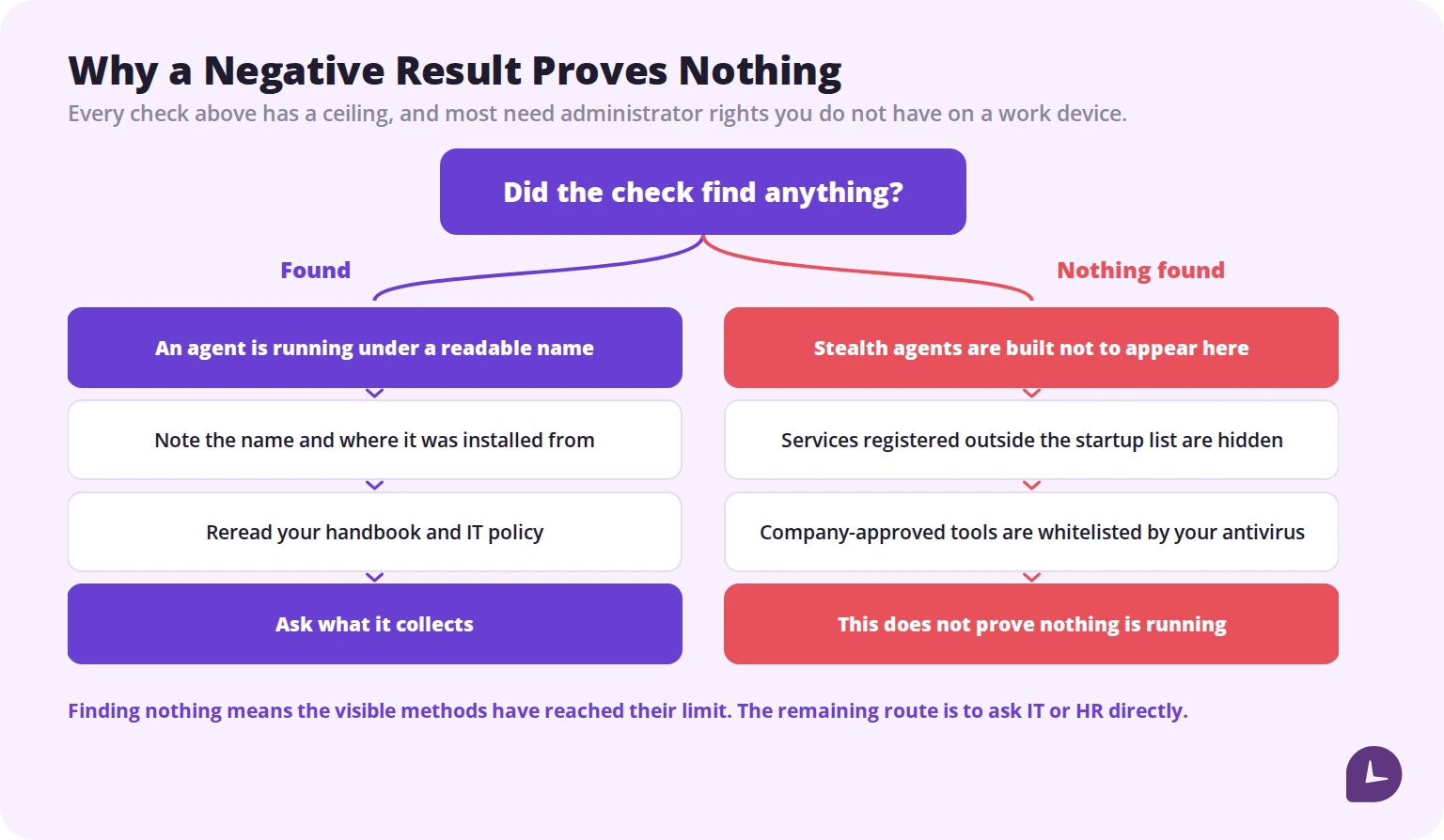
Two practical consequences. Running an unapproved scanner on a work device can itself trigger an alert in your company’s security system, which draws precisely the attention you were trying to avoid. And on a managed corporate network, outbound traffic is often routed centrally, so a traffic analyser shows you the company gateway rather than the agent. If what you have found is a screenshot-based tool, screenshot-based monitoring done without being intrusive sets out what a reasonable configuration looks like.
Signs That Need No Technical Check at All
Some indicators are more reliable than anything in Task Manager. If your employer discusses active time, productivity scores or attendance logs that nobody submitted manually, an agent is producing them. If you have ever received an idle prompt asking whether you are still working, the same applies.
- You were asked to install a time-tracking app. Many of them record far more than hours.
- Your manager cites specifics nobody reported. How long a document stayed open, when you stepped away, which tool you spent the morning in.
- You get inactivity prompts. These are generated by an agent watching keyboard and mouse input.
- The laptop was configured before it reached you. Pre-imaged and enrolled devices almost always carry management software.
- You signed an acceptable use or IT policy at onboarding. Look for the words monitoring, tracking, recording or surveillance. In most cases, disclosure was made — just not prominently.
- Access to settings has narrowed. Losing the ability to install software or reach system preferences usually means a stricter management profile was applied.
Does Your Employer Have to Tell You?
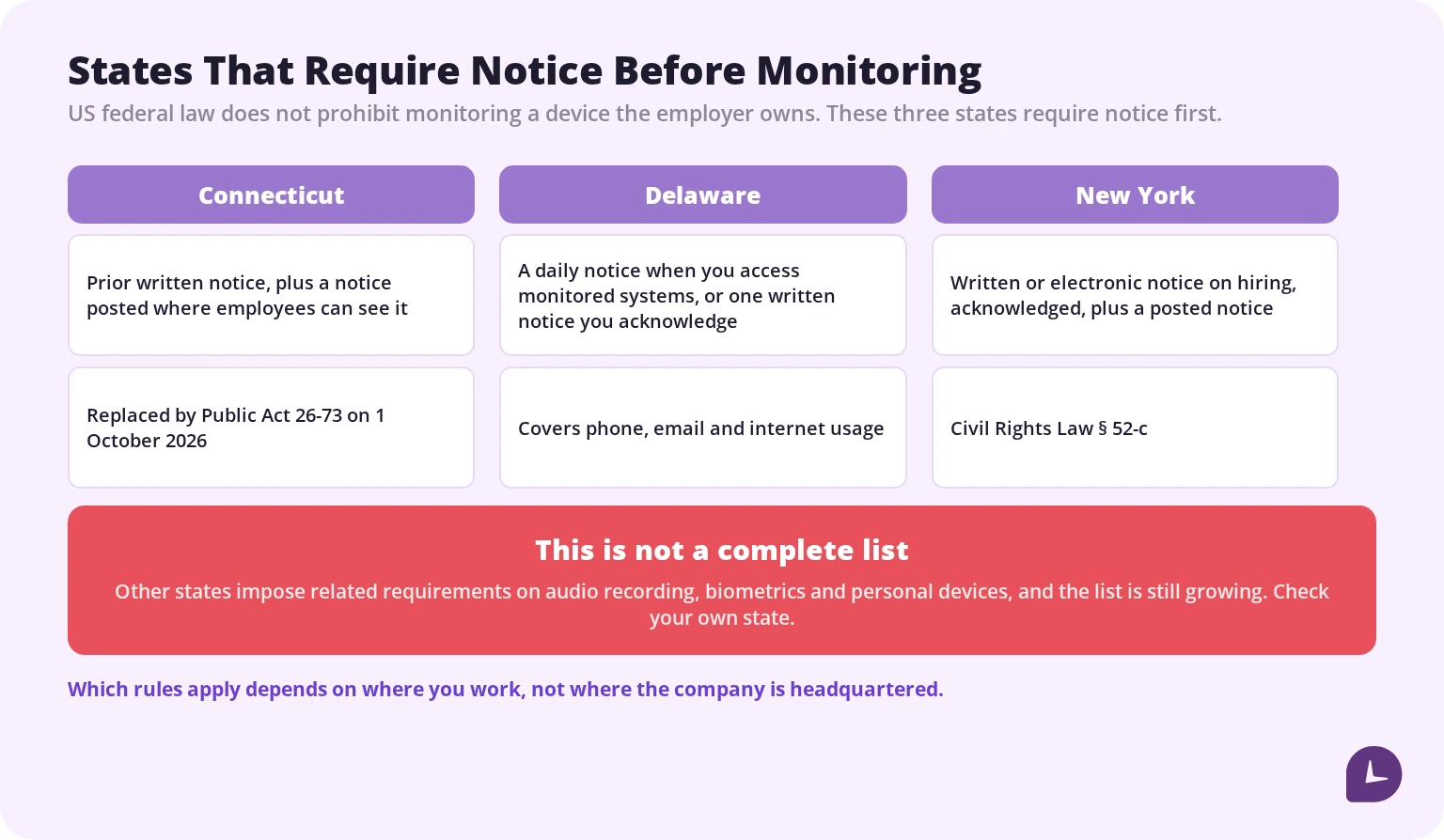
In the United States, no federal law prohibits an employer from monitoring devices it owns, and the Electronic Communications Privacy Act permits monitoring for legitimate business purposes. A small number of states go further and require notice before monitoring begins. Which rules apply depends on where you work, not where the company is headquartered.
| State | Requirement | Note |
|---|---|---|
| Connecticut | Prior written notice of electronic monitoring, plus a notice posted where employees can see it | Rules are replaced by Public Act 26-73, effective 1 October 2026 |
| Delaware | Either a daily notice when you access monitored systems, or one written notice you acknowledge once | Covers phone, email and internet usage |
| New York | Written or electronic notice on hiring, acknowledged by the employee, plus a posted notice | Civil Rights Law § 52-c |
This table is not exhaustive. Other states impose related requirements — on recording audio, on biometric data, on personal devices — and the list of states with notice obligations is still growing. If the question matters to your situation, check your own state rather than relying on a summary.
Two points worth holding onto. First, a policy buried in an onboarding pack still counts as disclosure in most places, which is why the employee handbook is the first document to reread. Second, employees outside the US often have stronger protections: under GDPR rules for employee monitoring, employers must inform staff before monitoring starts and limit it to what a legitimate purpose requires.
Get more out of your business.
Start Your 10-Day Trial
What to Do If You Find Something
Do not uninstall, disable or block it. Removing monitoring software from a company-owned device is likely to breach your employment contract or IT policy, and it converts a question about privacy into a disciplinary matter. Read your policy documents first, then ask.
- Reread what you signed. Employment contract, handbook, IT acceptable use policy. Most people who discover monitoring find it was disclosed in one of them.
- Ask plainly rather than accusingly. “I noticed [name] running on my laptop — what does it collect?” is a reasonable question and is answered clearly by employers with nothing to hide.
- Separate personal from work. The strongest protection is not detection but habit: personal banking, private messages and personal accounts belong on your own device. On company hardware, the expectation of privacy is limited even where monitoring is undisclosed.
- Check your state’s requirements if you were never told anything. Where notice is required and none was given, your employer may be out of compliance.
- Talk to an employment attorney if the monitoring reaches personal devices, continues outside working hours, or looks targeted at you specifically.
Questions worth asking your employer
These get you further than any technical check, and asking them is not confrontational — it is asking for clarity.
- What is being recorded: applications, websites, screenshots, active time, keystrokes?
- Is anything excluded — personal accounts, particular applications, breaks?
- Can I see my own data?
- Who else can see it, and does it feed into performance reviews?
- Is it running all the time, or only during scheduled hours?
- How long is the data kept, and how is it secured?
If You Are the One Deciding Whether to Monitor
Some readers arrive here from the other side of the question. The short version: disclosed monitoring achieves what covert monitoring achieves, without the legal exposure and without the damage to trust that follows when people find out on their own.
Tell people what is collected before the agent is installed, keep collection to work hours and work activity, and give employees access to their own data. Monitask records time worked, activity levels, applications and websites, and periodic screenshots while an employee is clocked in — with no keystroke logging, and with screenshots and internet tracking switchable per person. A stealth mode exists for the narrow cases where it is legally warranted, but it is not the default, and it does not remove any notice obligation your state imposes. Where you employ people determines what you must disclose; the software does not decide that for you.
If the underlying goal is proof of hours rather than surveillance, clock-in and clock-out tracking usually answers it with far less collected data. And on distributed teams, building trust remotely tends to solve the problem that monitoring was bought to solve.
> This article is general information, not legal advice. Employee monitoring requirements vary by state, by locality and by contract, and they change — Connecticut’s rules are replaced on 1 October 2026. For your own situation, consult an employment attorney in your state.
Reliable employee tracking software. Clear visibility and insights into how employees work. Even remotely.
Try Monitask free for 10 days
Frequently Asked Questions
Is it legal for my employer to monitor me without telling me?
In the United States there is no federal prohibition on monitoring company-owned devices, and the Electronic Communications Privacy Act permits it for legitimate business purposes. Connecticut, Delaware and New York require notice before monitoring begins, and other states impose related requirements. Outside the US, rules are generally stricter.
Does a company laptop mean I am being monitored?
Not automatically, but assume some level of management software is present. A device enrolled by IT before it was issued can have software installed on it remotely, and most corporate machines carry at least endpoint security. Whether that extends to activity monitoring is a separate question, and the checks above are where to start.
Can my employer see what I type?
Some platforms support keystroke logging, but most mainstream monitoring tools do not record the content of what you type, and several — including Monitask — do not offer the capability at all. If this is your specific concern, it is a fair question to put to IT directly, and the answer should be in your acceptable use policy.
Should I remove monitoring software from my work computer?
No. Removing or disabling it on a company-owned device is likely to breach your employment contract or IT policy, and the consequences are usually worse than the monitoring you were trying to stop. If you object to what is being collected, the route is your policy documents, a conversation with HR, and if necessary an employment attorney.
Can my employer monitor me outside working hours?
It depends on configuration rather than capability. Well-configured monitoring runs only while an employee is clocked in or during scheduled hours, and stops otherwise. Monitoring that continues around the clock, or that reaches a personal device, is worth raising — both because it is unusual and because it attracts more legal scrutiny.
What is the difference between employee monitoring and time tracking?
Time tracking records when work happened and for how long. Monitoring adds detail about what happened — applications, websites, activity levels, screenshots. Many products do both, which is why reading what your employer switched on matters more than the category the product belongs to. [A fuller overview of monitoring types](/blog/how-employees-can-tell-if-they-are-being-monitored/), including cameras, GPS and call recording, covers the methods that sit outside the computer itself.