Time Tracking With Screenshots: How to Use It Without Being Intrusive

Time tracking with screenshots records how long work takes and periodically captures the screen while someone is clocked in, so hours come with visual context rather than a number alone. It is also called screenshot monitoring or proof-of-work tracking. Used well, it settles billing disputes and replaces status meetings. Used badly, it is the fastest way to lose the people you were trying to manage.
This guide covers what screenshots actually prove, how often to capture them, which settings matter, and what to tell your team before you turn anything on.
Key takeaways
- Screenshots prove that work happened, not that it was good. Treat them as context, not as evidence of intent.
- Ten to fifteen minutes at random within the interval is the usual setting. More frequent capture produces more data than anyone reviews.
- Blur, per-person toggles and a stated retention period matter more to adoption than any other feature.
- Tell people before you install anything, and say what is collected, who sees it and for how long. Three US states require written notice, and Connecticut’s rules change on 1 October 2026.
- If hours are the only question, plain time tracking answers it without capturing anyone’s screen.
What Screenshots Prove, and What They Don’t
A screenshot shows what was on screen at one moment. It does not show why, and it does not show whether the work was any good. Most disputes about monitoring come from managers reading more into a single frame than a single frame can carry.
| A screenshot can show | A screenshot cannot show |
|---|---|
| That someone was at the machine during logged hours | Whether the work was correct or useful |
| Which application or document was open | Why it was open, or what the task required |
| That billed hours match visible activity | The thinking, calls and reading that leave no trace on screen |
| A pattern, when read across days | Intent, from a single frame |
| A starting point for a conversation | A conclusion that can replace one |
Two rules follow from this. Read trends rather than frames: one screenshot of a news site means nothing, the same thing at the same hour every day means something worth asking about. And ask before concluding — there is usually an explanation, and asking for it costs a manager nothing.
Boost your business productivity
Track performance and streamline teamwork
When Screenshots Are Worth It
Screenshots earn their place when someone outside the team needs to trust the hours: a client paying by the hour, an auditor checking a billed project, a contractor you have not worked with before. Inside a settled team with clear output, they usually add friction without adding information.
Worth turning on
- Hourly client billing. A disputed invoice is settled by a timeline of work, not by an argument about memory — which is most of what billable hours for agencies and freelancers depend on.
- New contractors. A short initial period sets expectations on both sides, after which the interval can be lowered or the feature switched off.
- Fixed-scope projects with penalties. When a missed date costs money, visible progress replaces the daily status call.
- Regulated work where an audit trail of hours is a requirement rather than a preference.
Not worth turning on
- Salaried staff with clear deliverables. The work itself already answers the question.
- Creative or research work, where hours on screen correlate poorly with output.
- As a response to one person. Monitoring an entire team because of one situation is how the whole team learns not to trust you. Handle the situation directly.
- Anywhere local law makes it disproportionate. Some jurisdictions require the least intrusive method that meets the business need.
If the real question is only how many hours were worked, clock-in and clock-out tracking answers it without capturing anyone’s screen.
How Often Should Screenshots Be Taken?
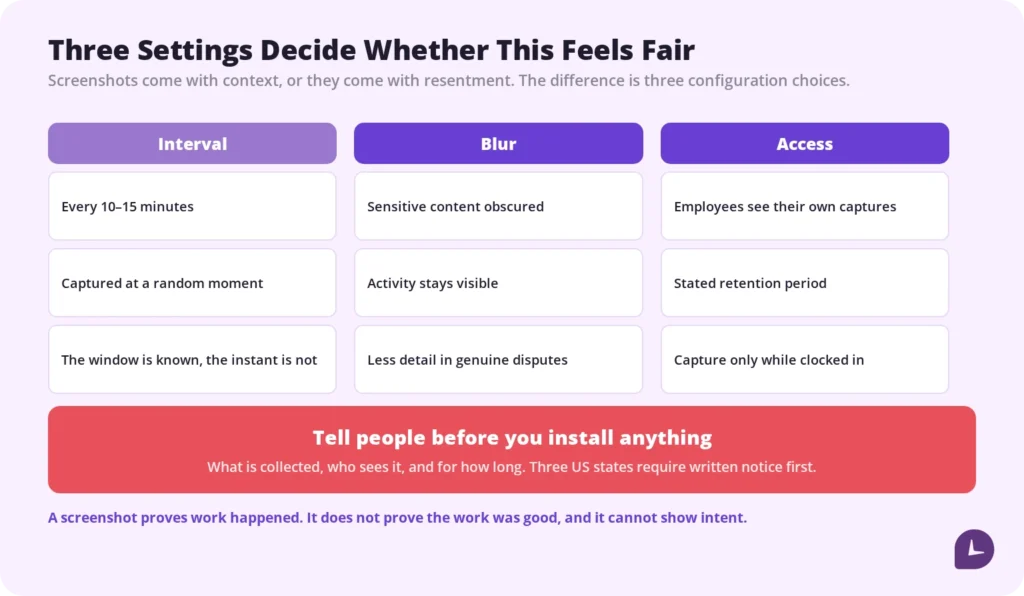
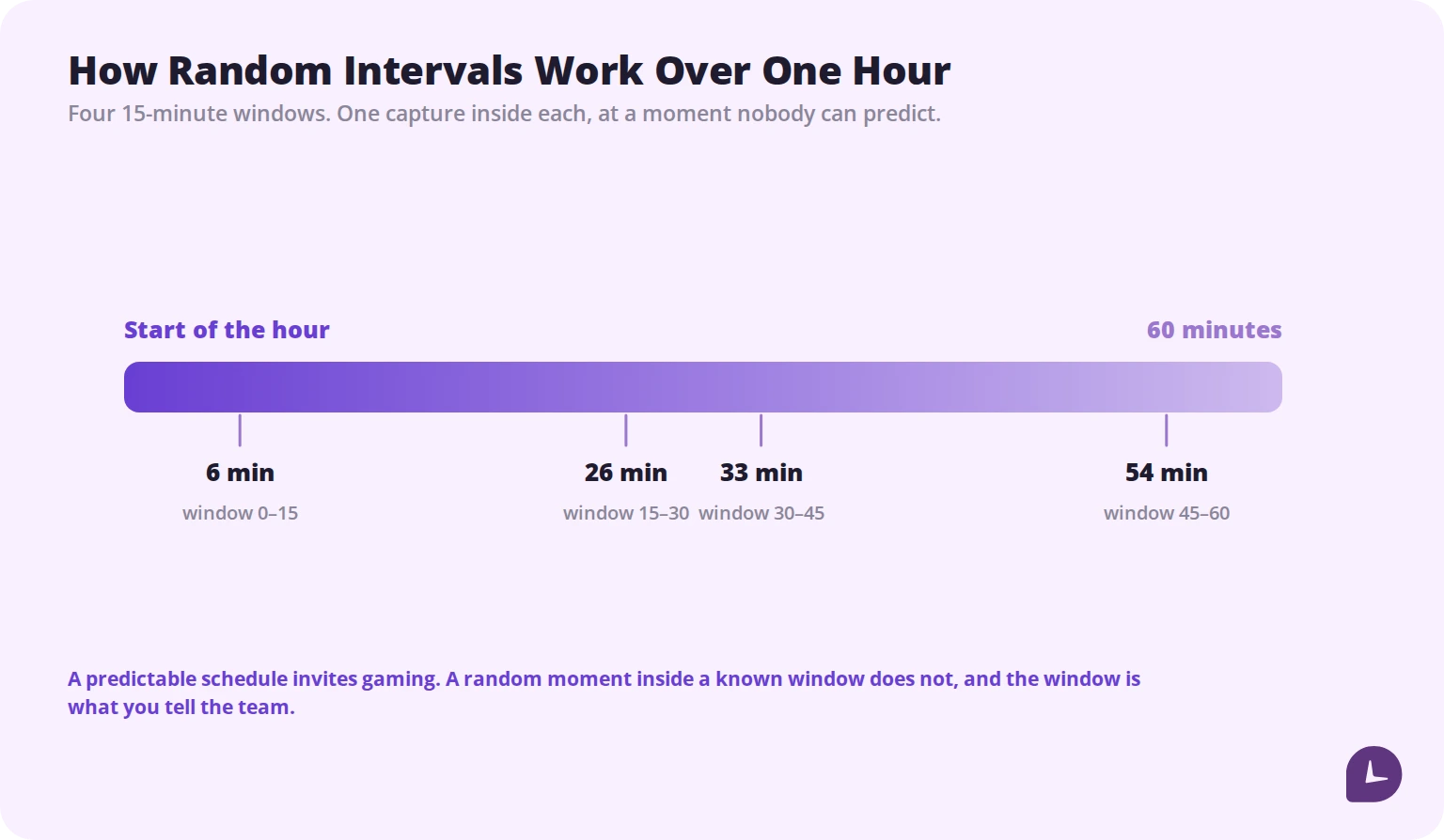
Every ten to fifteen minutes, captured at a random moment inside that interval, is the common setting across the category. Random timing matters more than frequency: a predictable schedule invites gaming, while a random moment inside a known window does not.
| Interval | What it suits | What it costs |
|---|---|---|
| Every 5 minutes | Short high-value billable work, audits | Volume nobody reviews; reads as surveillance |
| Every 10–15 minutes | Most client-billed and contractor work | Little; this is the usual default |
| Every 30 minutes | Settled teams needing light verification | Gaps long enough to prove little |
| Off, activity only | Salaried teams with clear output | No visual context when a dispute arises |
More frequent capture is not more rigorous, it is just more images. A manager who reviews a hundred screenshots a day reviews none of them properly, and everyone on the team knows it.
Settings That Decide Whether This Feels Fair
Five settings do almost all the work. Each is a trade-off, and each one is worth deciding deliberately rather than leaving at whatever the default was.
| Setting | What it gives you | What it costs |
|---|---|---|
| Blur sensitive content | Activity is visible, content is not | Less detail in genuine disputes |
| Per-person or per-project toggle | Capture only where it is needed | Requires explaining why some roles and not others |
| Employee access to their own captures | Trust, and errors caught early | People will query frames, which takes time |
| Stated retention period | A defensible answer to “how long do you keep this?” | Old evidence disappears on schedule |
| Capture only while clocked in | Nothing collected outside working time | Nothing recorded when someone forgets to clock in |
The last one is the line worth holding. Monitoring that continues after hours or reaches a personal device changes what the tool is, legally and in how it is received. Monitask captures only while an employee is clocked in, blurs sensitive content before a screenshot leaves the machine, records no keystrokes, and gives managers no remote access to the computer.
Boost your business productivity.
Start Your 10-Day Trial
Before You Switch It On
Tell people first. This is not a formality: in the United States, three states require written notice before electronic monitoring begins, and disclosure is also what makes screenshots useful later — records gathered without notice are the ones that fall apart when they matter.
- Say what is collected, in plain terms: screen captures at intervals, applications, websites, active time.
- Say who can see it and confirm that access is limited to named roles.
- Say how long it is kept, and then actually delete on that schedule.
- Say what it will and will not be used for. If it never feeds performance reviews, say so — and mean it.
- Apply it consistently. Selective monitoring is what turns a policy into a complaint.
- Check your states. Connecticut, Delaware and New York require notice, Connecticut’s requirements are replaced on 1 October 2026, and the list is not exhaustive. Where your employees live decides this, not where the company is registered.
Employees increasingly check for themselves — there is a whole category of guidance on how to detect monitoring software. Being the employer whose answer matches what they find is worth more than any setting in the admin panel.
Rolling It Out Without Losing the Room
- Start with the narrowest scope that solves the problem. One project, one client, one contractor. Expanding later is easy; walking it back is not.
- Show the team what you see. Half of the anxiety is imagining a feed of live video. Showing the actual blurred, 15-minute-interval reality resolves it in one meeting.
- Give people the same view you have. Someone who can see their own record can correct it; someone who cannot finds out during a review — which is most of how to build trust in a remote team.
- Put it in writing and get acknowledgment at onboarding and at each change.
- Review after three months. If nobody has opened the screenshots, that is the answer — turn them off and keep the hours.
- Watch what it does to behaviour. If people start performing activity rather than doing work, the setting is wrong, and micromanagement is what you have bought.
Key Takeaways
Screenshots are context, not proof of intent. Ten to fifteen minutes at random suits most work. Blur by default, keep capture inside working hours, state the retention period, and tell people before you install anything. And if the only question is how many hours were worked, answer it with plain time tracking instead.
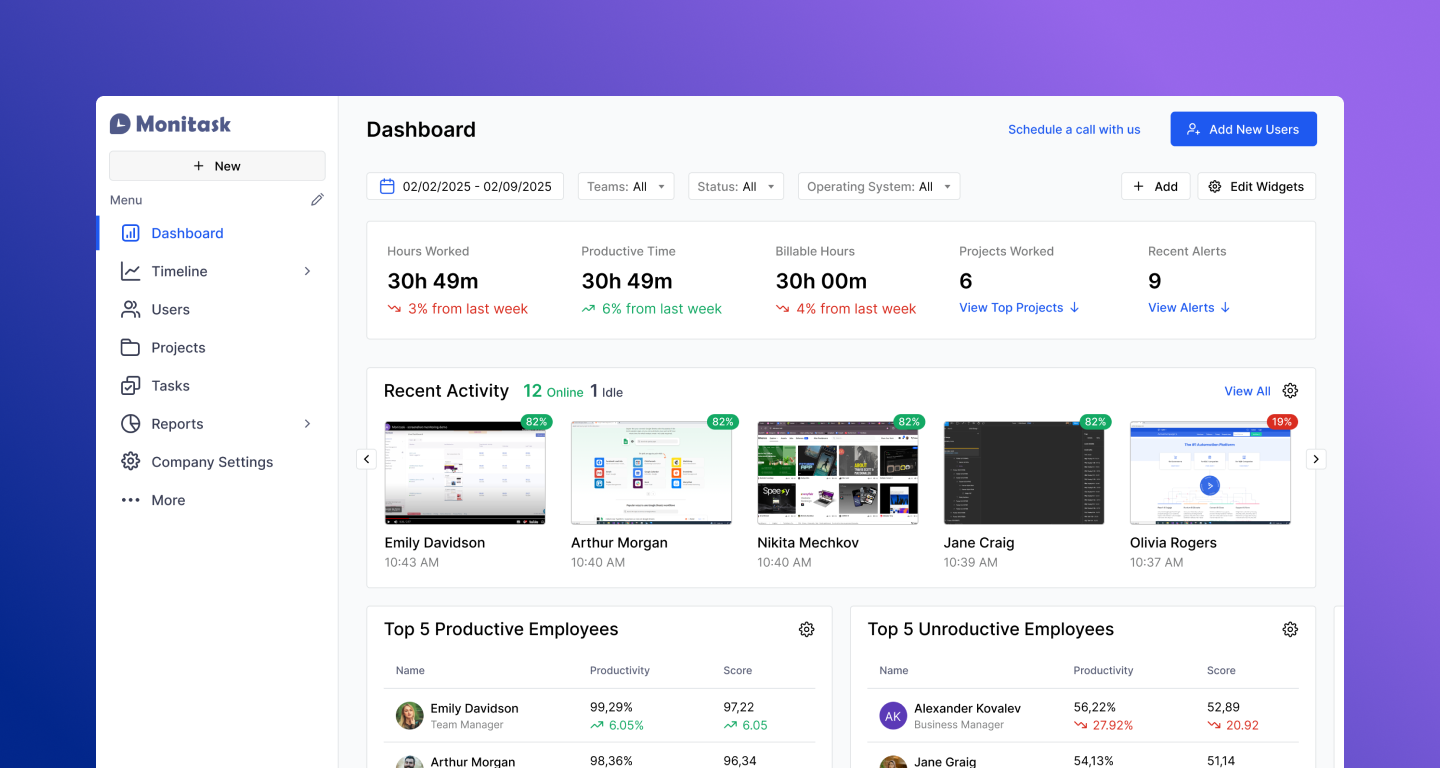
Monitask records time, activity, applications and websites, and captures screenshots only while someone is clocked in — with blur, per-person controls and no keystroke logging. Try it on a 10-day free trial, no card required.
> This article is general information, not legal advice. Monitoring requirements vary by state, by country and by contract, and they change. Have an employment attorney review your monitoring policy before you deploy screenshot capture, particularly if your team is spread across several states.
Reliable employee tracking software. Clear visibility and insights into how employees work. Even remotely.
Try Monitask free for 10 days
FAQ: Time Tracking with Screenshots
Is screenshot monitoring legal?
On company-owned devices, generally yes, provided employees are informed. In the United States there is no federal prohibition, but Connecticut, Delaware and New York require notice before monitoring begins, and Connecticut’s rules are replaced on 1 October 2026. Outside the US, requirements are usually stricter. Where your employees live determines what applies.
Can employees see their own screenshots?
It depends on the tool, and giving them access is now considered good practice. Someone who can see their own record can flag a frame that caught something personal and can correct a misreading before it reaches a review. Tools that keep employees in the dark signal distrust and generate more resistance than the data is worth.
Do screenshots capture sensitive information?
They can — passwords, private messages, client records, financial data. This is the main reason blur exists. With blur enabled, a manager sees which application was in use without the content being legible. Pair it with a clear rule about what happens if something sensitive is captured anyway.
Does screenshot monitoring track activity outside working hours?
It should not, and on properly configured platforms it does not. Monitask captures only while an employee is clocked in and stops when they clock out. Monitoring that continues around the clock, or reaches a personal device, is a different category of product and carries far more legal exposure.
Are screenshots proof of productivity?
No. They show that someone was at the machine and which application was open. Reading, calls, planning and thinking leave no visible trace, and a screenshot of an unrelated site says nothing about the day as a whole. Screenshots are useful alongside output, deadlines and quality, not instead of them.
What is the difference between screenshot monitoring and screen recording?
Screenshots are still images taken at intervals; screen recording is continuous video. Recording captures far more, needs much stronger justification and storage, and is harder to defend in most jurisdictions. For verifying hours, periodic screenshots do the job with a fraction of the privacy cost.
Can employees turn screenshots off?
Typically not themselves, though some platforms let an employee pause tracking entirely. What matters more is that an administrator can disable capture per person or per project, so the feature runs only where it is needed rather than across the whole company by default.