
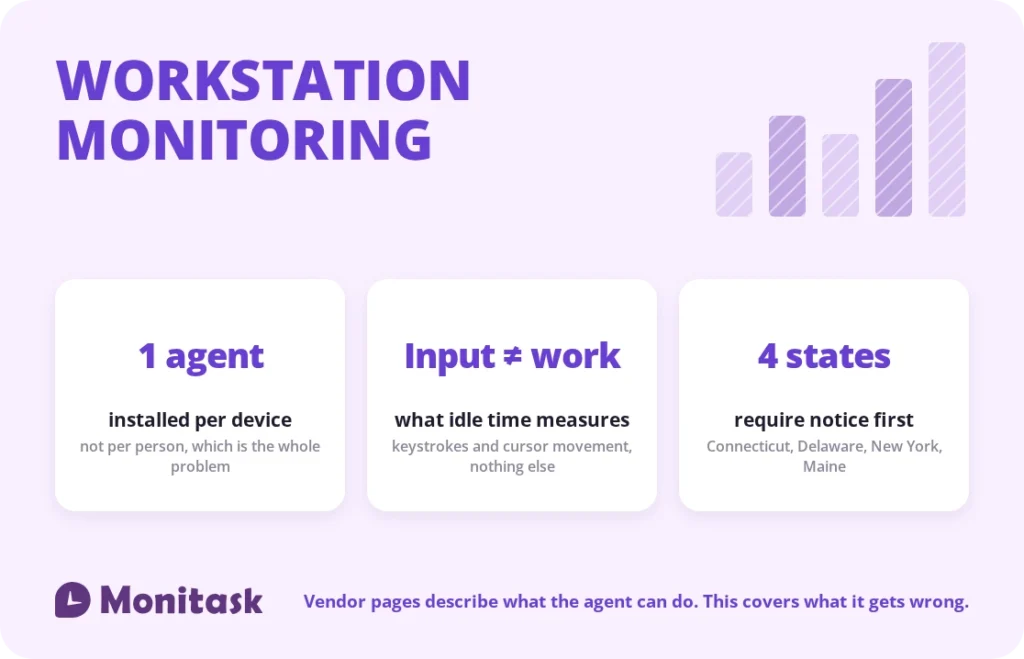
Workstation monitoring is the device-level layer of employee monitoring: a software agent installed on a computer that records application and website use, active and idle periods, and optionally file events and screenshots.
Every product page in this category explains that the agent is lightweight, deploys by Group Policy and keeps recording when the machine is offline. All true. None of them explain the three situations where the data comes out wrong — shared workstations, virtual desktops, and the definition of idle time itself — and those are the situations that make a rollout produce numbers nobody trusts.
This guide is the technical layer. For the product category and what to buy, see user activity monitoring. For what the law requires, see employee monitoring laws.
How the agent works
A small program installed on the workstation, running as a background service. It reads what the operating system already exposes:
Foreground window. Which application has focus and for how long. This is the primary signal, and it is metadata rather than content.
Browser activity. The URL or domain in the active tab, usually through a browser extension or by reading the window title.
Input events. Keyboard, mouse and scroll activity, used to classify each minute as active or inactive. Counting that events occurred is not the same as recording what they were.
Optionally, deeper layers. File and device events, screenshots at intervals, continuous session recording, keystroke logging. Each is a configuration choice rather than an inherent property of the agent.
Data is buffered locally and transmitted to a console when a connection is available, which is why the agent keeps recording off the network. A laptop used on a plane produces a complete record that syncs on landing. That is a genuine strength, and it is also why the device holds a local data store worth thinking about.
What it can see, by layer
The gap between what an agent is capable of and what it should be configured to collect is the single most consequential decision in a deployment.
| Layer | What it captures | Content? | Reasonable default |
|---|---|---|---|
| Foreground app and window | Which program, how long | No | On |
| Web activity | Domain or URL visited | Partial | Domain only |
| Active / idle classification | Whether input occurred | No | On |
| File and device events | Copies, USB, printing, transfers | No | On for security use |
| Screenshots | Images at intervals | Yes | Off, or sampled and blurred |
| Session recording | Everything on screen | Yes | Off outside regulated settings |
| Keystroke logging | Every key pressed | Yes | Off |
The last two rows are where the exposure is. A stored screen recording contains whatever was on the screen — customer records, credentials, a colleague’s message, a personal email opened at lunch. That store becomes part of your attack surface and part of your breach notification obligations, and it is reviewed by nobody until something goes wrong.
Keystroke logging additionally captures passwords typed into the wrong field, which means your monitoring database now contains credentials.
The useful rule: collect the shallowest layer that answers your question. Depth is trivial to add later and impossible to un-collect.
What idle time actually measures
The most misread number this category produces.
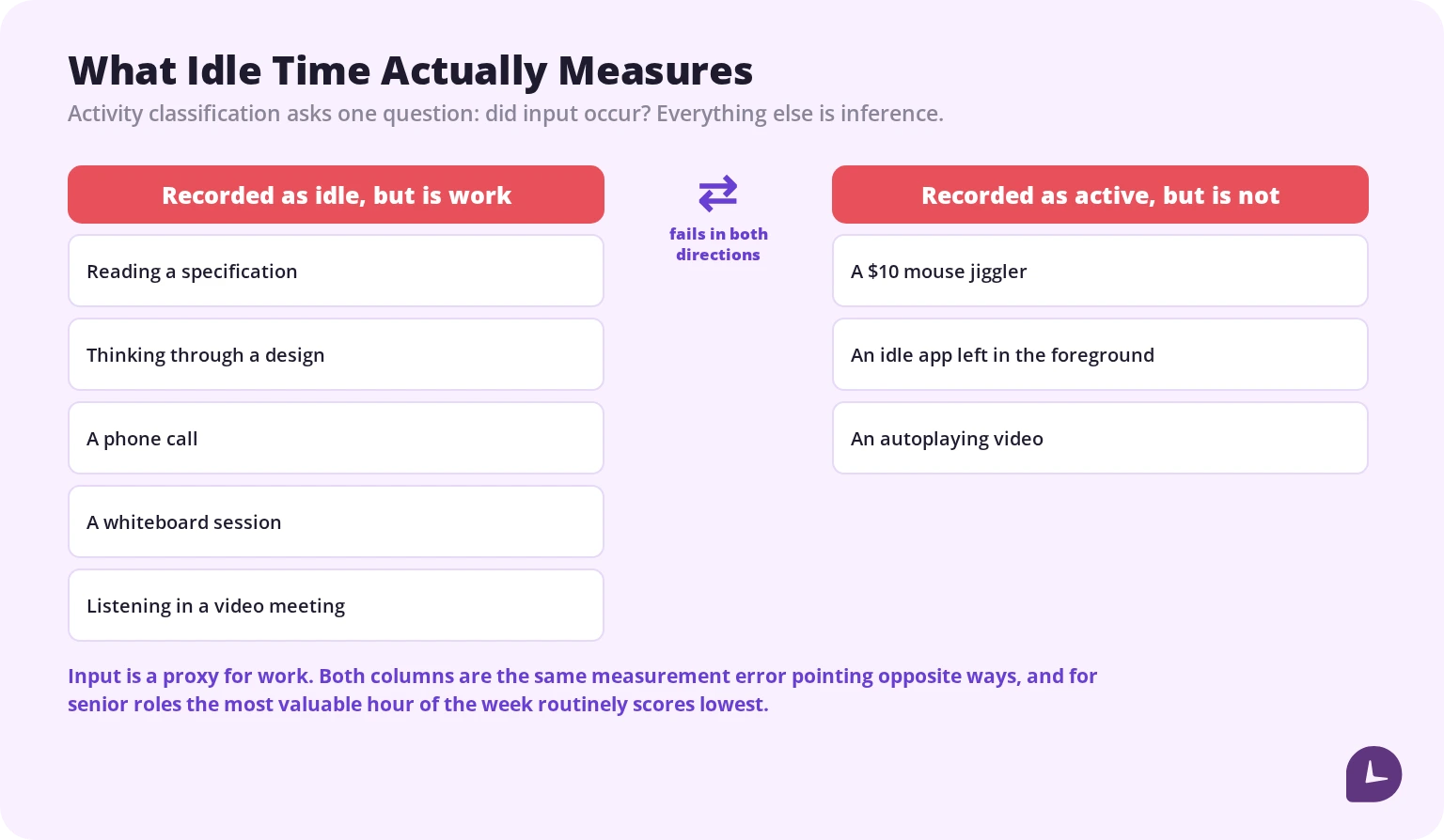
Idle time is calculated from the absence of keyboard, mouse or scroll input beyond a threshold. That is a precise measurement of a proxy, and the proxy is weak in both directions.
It marks real work as idle. Reading a specification. Thinking through a design. A phone call. A whiteboard session. A video meeting where you are listening rather than typing. For senior roles the most valuable hour of the week routinely produces the lowest activity score of it.
It marks non-work as active. A mouse jiggler is a physical device costing about ten dollars that keeps the cursor moving indefinitely. Any metric it defeats was never measuring work.
It shifts behaviour. Once people know the number is watched, they optimise it. Mouse movement rises, deep work falls, and you have taught the team to perform rather than to work.
Three ways to use the number honestly:
Use it to find gaps, not to grade people. A workstation showing zero input for four hours on a day someone was clocked in is worth a question. A colleague whose average activity is 8% below the team’s is not.
Never compare across roles. A developer, a designer and a support agent doing their jobs well produce completely different activity profiles.
Pair it with output. Activity alone answers nothing. Activity against delivered work answers something.
Absent from every vendor page in this category, and the first thing that breaks a deployment in manufacturing, healthcare, retail back-office and warehouse environments.
A single machine used by several people across a shift produces data that is accurate about the device and meaningless about any person, unless attribution is solved.
Three approaches:
Individual OS accounts. The clean answer. The agent attributes activity to the logged-in user, and the record is correct. It requires that people actually log out, which in practice they do not when the machine sits on a production line and logging in takes 40 seconds.
Kiosk or shift login. Users authenticate to the application rather than to the OS. Attribution comes from the application session, not the Windows session.
Device-level reporting only. Accept that the data describes the workstation, and use it for utilisation and software asset questions rather than for anything about individuals.
The failure mode to avoid is the middle ground: one shared Windows account, per-user reports generated from it, and management decisions made on numbers that are attributing one person’s afternoon to whoever logged in that morning.
Virtual desktops and RDP
Remote desktop and VDI environments give you two places to install the agent, and choosing both causes a specific, common error.
On the virtual desktop. Captures what happens inside the session, which is where the work is. Correct for most purposes.
On the local endpoint. Captures the machine the person is sitting at. Useful if you need to know about local activity outside the session, and it is the only option when people connect from unmanaged devices.
Both at once double-counts. The local agent records the RDP client as the foreground application for the whole session while the remote agent simultaneously records the applications inside it. Total hours come out roughly double, and the error is not obvious in a report because both records look plausible.
Pick one as the system of record. In almost every case that is the virtual desktop, with the local agent either absent or explicitly excluded from time totals.
Two further details. Non-persistent VDI resets the machine between sessions, so the agent must be baked into the image or deployed at logon rather than installed once. And multi-session hosts require an agent that separates concurrent user sessions on one operating system, which not all products do.
Personal devices and BYOD
An agent on a personal machine is a materially different proposition from an agent on a company laptop.
The legal position is weaker because the employer does not own the device and the employee’s expectation of privacy is stronger. The practical position is worse: a full agent on a personal computer records activity outside working hours, personal browsing, family use of the same machine, and everything else that happens on it.
Three workable answers, in order of preference:
Don’t. Issue a company device for work that needs monitoring.
Containerise. A managed work profile or virtual desktop, with the agent inside it and nothing outside it in scope.
Narrow, explicit consent. Separate written consent, scoped to specified work applications and working hours, with a clear statement of what is not accessible and a documented way to verify that.
Whichever you choose, the agent should not run outside clocked-in or working hours on a personal device. That single setting resolves most of the objection and most of the risk.
Deployment
Windows domain environments. Group Policy or Microsoft Endpoint Manager pushes the agent silently across the estate. This is the standard route and it is the reason most products in this category are Windows-first.
macOS. Requires explicit permissions that the operating system deliberately makes visible: screen recording, accessibility, and input monitoring all prompt the user and appear in system settings. A silent macOS deployment is substantially harder by design, which is worth knowing before promising IT a uniform rollout.
Unmanaged and remote machines. Manual installation, or a deployment package. Contractors and BYOD generally fall here.
Practical advice: pilot on one team for two weeks before the estate. You are looking for performance complaints, application conflicts, VPN and proxy interactions, and whether the data actually answers the question you bought it for. Most of what goes wrong in this category goes wrong in the first fortnight and is cheap to fix then.
Where the data lives
A question worth settling before signing, because it determines your exposure.
On-premises console. Data stays inside your network. You own the storage, the backups and the security of it. Suits regulated environments and organisations with an IT function to run it.
Vendor cloud. Lower operational burden, and your employees’ activity data now sits with a third party. Ask where the data is stored geographically, how long it is retained by default, who at the vendor can access it, and what happens to it when you stop paying.
Four settings to establish either way:
Retention. Data kept past its purpose is a liability with no offsetting benefit. Set a period and delete on schedule.
Access control. Who can view monitoring data, restricted by role. Access to it should itself be logged, because these programmes eventually have to answer who was watching whom.
Encryption in transit and at rest, particularly where screenshots or recordings are collected.
Masking. Some products can redact or pseudonymise sensitive fields. Where available, use it — it reduces the value of the store to an attacker without reducing its value to you.
Boost your business productivity
Track performance and streamline teamwork
Stealth mode
Most products in this category advertise a hidden deployment option. It deserves a clear-eyed treatment rather than a feature bullet.
It conflicts with notice duties. New York, Connecticut and Delaware require notice before electronic monitoring, and New York and Delaware require employee acknowledgment. Maine’s broader law takes effect in summer 2026. A covert deployment for employees in those states is a direct problem, and the employee’s location governs, not the company’s.
Consent is the safest footing under federal law. The ECPA’s consent exception is the cleanest basis for monitoring, and covert monitoring forgoes it.
Discovery is worse than disclosure. Employees find out. The cost of a covert programme becoming known is not proportional to the benefit it provided while hidden.
There are narrow situations where covert monitoring of a specific individual is defensible — an active investigation into suspected misconduct, scoped and time-limited, with legal advice. Connecticut’s statute contains a narrow exception along these lines. Running the whole workforce covertly is a different thing entirely, and the vendors selling it as a general mode are selling you their liability.
Performance and support burden
Every product page says the agent is lightweight and has no impact. Reality is more mixed, and worth budgeting for.
CPU and memory. Genuinely small for metadata collection. Screenshot capture and especially continuous session recording are not: they consume processing, disk and upload bandwidth, and user reports of slowdowns in this category cluster on exactly those features.
Antivirus and EDR conflicts. An agent that hooks input and captures screens looks a great deal like something you would want your endpoint protection to block. Exclusions usually need configuring, and that is an IT task rather than a setting.
Battery. Continuous capture on laptops is noticeable, and it is one of the first things users complain about.
Support load. Budget for it. A monitoring rollout generates tickets — agent not reporting, wrong user attributed, data missing for a day — and the volume is highest in the first month.
None of this is a reason not to deploy. It is a reason to pilot, and to be sceptical of “no impact” when the configuration includes recording.
A configuration that holds up
If you want a default that is defensible and useful:
- Metadata layer on. Applications, domains, active and idle classification.
- File and device events on if security is part of the reason you bought it.
- Screenshots off, or sampled at long intervals, blurred, and visible to the employee.
- Session recording and keystroke logging off.
- Nothing runs outside working or clocked-in hours.
- Employees can see their own data. This is the practical line between a record and surveillance, and it costs nothing.
- Written policy delivered and acknowledged before deployment, not after.
- Retention set, deletion automated, access logged.
Everything on that list is a configuration decision rather than a product decision, which is why two organisations running the same software can end up with completely different relationships with their staff.
Common mistakes
Enabling everything at rollout. Depth can be added later and never un-collected.
Reading idle time as effort. It measures input, and it fails in both directions.
One shared account on a shared machine. Produces per-person reports that attribute the wrong work to the wrong person.
Agents on both the endpoint and the virtual desktop. Doubles the hours and both records look plausible.
Full agents on personal devices. Records everything the household does on that machine.
Deploying covertly. Illegal in four states without notice, and discovery costs more than disclosure ever would.
Keeping recordings indefinitely. A growing liability with a shrinking purpose.
Skipping the pilot. Almost everything that goes wrong does so in the first fortnight.
How Monitask helps
Monitask sits deliberately at the metadata layer. It answers where the working day went, and it is built so the employee can see what is recorded about them.
Tracking starts when the employee clocks in and stops when they clock out. Keystrokes are never recorded, and there is no continuous session capture.
- Application and website reporting at the layer that answers workforce questions without recording content.
- Activity levels without keystroke logging, measuring engagement rather than transcribing it.
- Optional screenshots at intervals, blurrable for sensitive content, with the employee able to see the last one taken.
- Mouse jiggler detection, because an activity metric you cannot trust is worse than no metric at all.
- Nothing outside clocked-in time, which resolves the personal-device and after-hours objections before they are raised.
If your requirement is forensic insider-threat investigation on regulated data, a security platform is the right tool. If it is understanding how the working day is spent, deep capture buys exposure you do not need.
See how it works: Monitask computer monitoring.
Sources
- New York Civil Rights Law § 52-c — notice on hire, employee acknowledgment and posted notice for electronic monitoring.
- Connecticut General Statutes § 31-48d — prior written notice, posted notice, and the narrow reasonable-grounds exception.
- Delaware Code Title 19 § 705 — daily notice or one-time notice with acknowledgment.
- Electronic Communications Privacy Act, 18 U.S.C. §§ 2510–2523 — the business purpose and consent exceptions relied on for workplace monitoring.
Related reading
- User Activity Monitoring
- Employee Monitoring Laws
- How to Monitor Employees Without Being Overly Intrusive
- Is Stealth Monitoring Ethical?
- How to Identify Mouse Jigglers Among Your Remote Team
- How to Know If Remote Employees Are Working
- GDPR Requirements for Employee Monitoring
FAQ
How does a monitoring agent work?
It runs as a background service and reads what the operating system exposes: the foreground application, browser activity, and input events. Data is buffered locally and syncs when a connection is available, so it keeps recording offline.
Does workstation monitoring work when the computer is offline?
Yes. The agent stores data locally and transmits it when the machine reconnects, which is why a laptop used without a network still produces a complete record.
What does idle time actually measure?
The absence of keyboard, mouse or scroll input beyond a threshold. It records reading, thinking, phone calls and meetings as idle, and it is defeated by a mouse jiggler, so it is a weak proxy for work in both directions.
Can you monitor remote desktop or VDI sessions?
Yes, by installing the agent on the virtual desktop or on the local endpoint. Do not do both: the local agent records the RDP client for the whole session while the remote agent records what happens inside it, roughly doubling the hours.
Can an employer monitor a personal computer?
It is legally weaker and practically intrusive, since the agent sees everything on the machine. Issue a company device, containerise the work environment, or obtain narrow written consent scoped to specific applications and hours.
Is stealth monitoring legal?
Not without notice in New York, Connecticut and Delaware, with Maine joining in 2026, and the employee’s location governs. Covert monitoring also forgoes the consent basis that makes monitoring straightforward under federal law.
Does a monitoring agent slow down a computer?
Metadata collection is genuinely light. Screenshot capture and continuous session recording are not, and they are the features associated with slowdown and battery complaints.
What should a monitoring agent be configured to collect?
The shallowest layer that answers your question. Application and website metadata for workforce visibility; file and device events for security. Session recording and keystroke logging are rarely justified outside regulated environments.