
Weekly Timesheet Template in Excel (Free Download + Formulas Explained)

Updated 25 September 2026
Reliable employee tracking software. Clear visibility and insights into how employees work. Even remotely.
Try Monitask free for 10 days
Download the free weekly timesheet for Excel and Google Sheets below. It calculates daily hours, deducts unpaid breaks, splits regular from overtime against a threshold you set, and totals gross pay. Every formula is visible and explained, including the one most Excel timesheets get wrong: overnight shifts need MOD, not plain subtraction.
The same workbook opens in Google Sheets. Use the Sheets copy link rather than a share link, so you get your own copy instead of a request for access.
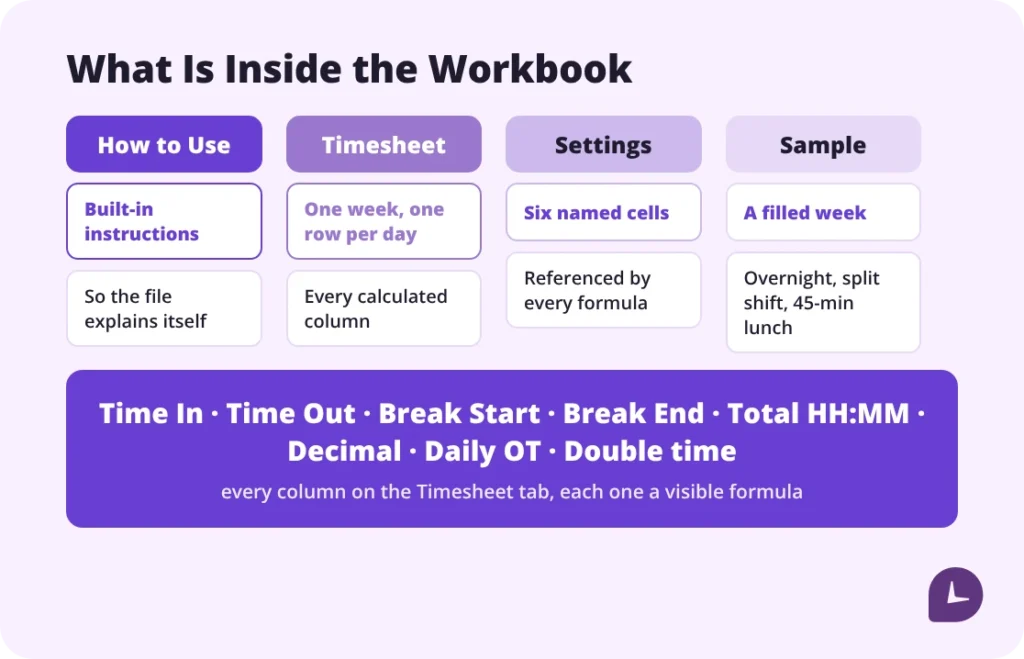
What’s inside the template
The workbook has four tabs:
| Tab | What it does |
|---|---|
| How to Use | Built-in instructions, so the file explains itself away from this page |
| Timesheet | One week, one row per day, with every calculated column |
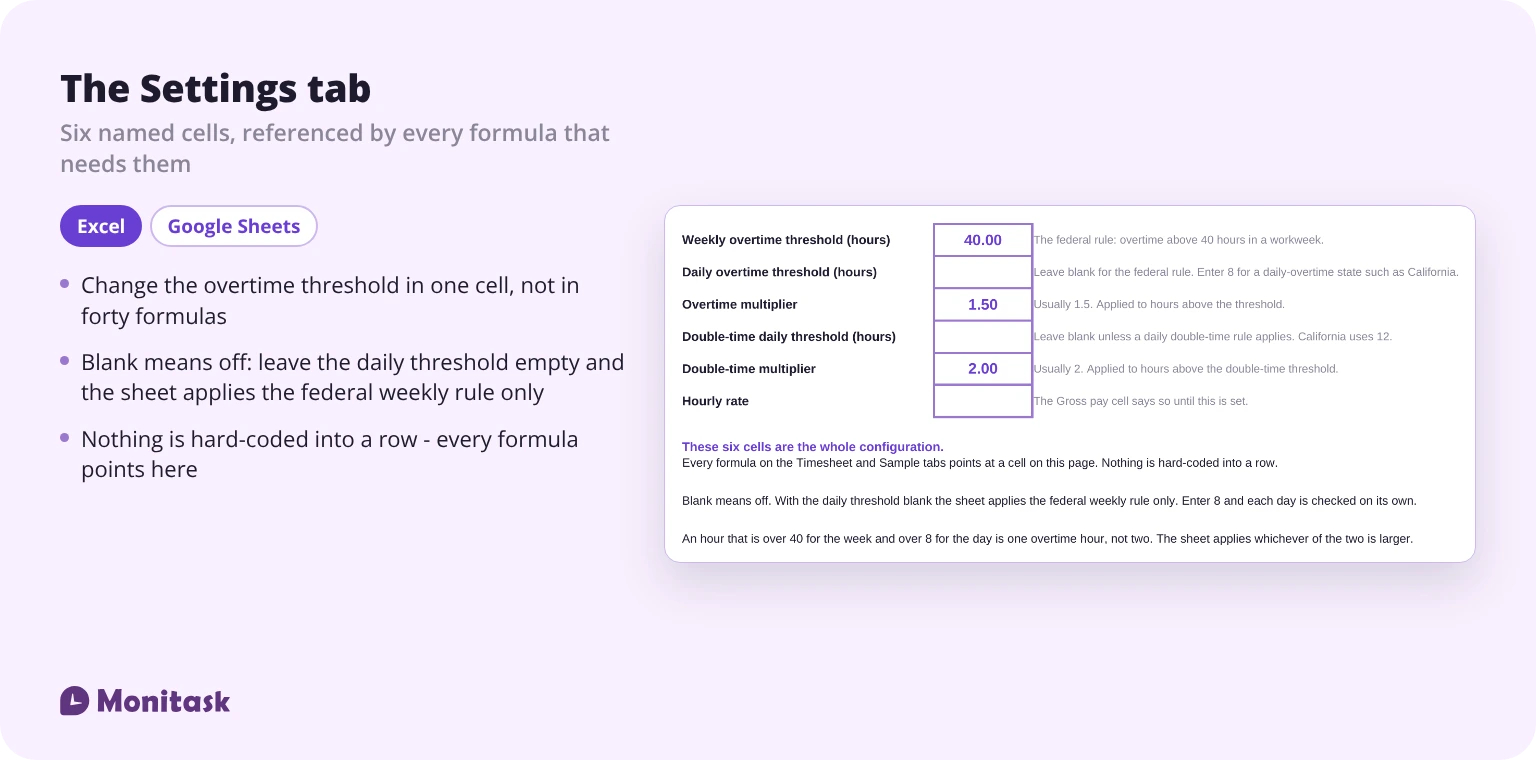
| Settings | Weekly overtime threshold, daily overtime threshold, overtime multiplier, double-time threshold, double-time multiplier, hourly rate — all in named cells |
| Sample | A filled week including an overnight shift, a split shift and a 45-minute lunch |
The Settings tab is the part worth knowing about. Most timesheet templates bury the 40-hour threshold inside the formula, so changing it means editing every row. Here it is one cell, referenced by every formula that needs it.
The formulas, explained
Every formula in the file is visible and editable. Here is what each one does.
| Task | Formula |
|---|---|
| Hours for a day shift | =(D2-C2)*24 |
| Hours for any shift, including overnight | =MOD(D2-C2,1)*24 |
| Hours minus an unpaid break | =MOD(D2-C2,1)*24 - MOD(F2-E2,1)*24 |
| Weekly total, as HH:MM | =SUM(G2:G8) |
| Weekly total, as decimal hours | =ROUND(SUM(G2:G8)*24, 2) |
| Regular hours, federal rule | =MIN(Settings!$B$1, H9) |
| Weekly overtime | =MAX(0, H9 - Settings!$B$1) |
| Daily overtime, where a state rule applies | =IF(Settings!$B$2="", 0, MAX(0, H2 - Settings!$B$2)) |
| Double time, where a state rule applies | =IF(Settings!$B$4="", 0, MAX(0, H2 - Settings!$B$4)) |
| Gross pay | =Regular*Rate + Overtime*Rate*OT_Multiplier + Double_Time*Rate*DT_Multiplier |
The first three are written to give you decimal hours in one step, which is how you would build it yourself. The file splits that into two columns instead — G holds the time as [h]:mm and H multiplies it by 24 — because payroll wants the decimal and people want to read the clock.
Note which column the daily rules read. H is the decimal column, so the comparison is 9.00 against 8. Pointing them at G instead is a quiet failure: G holds a time serial, so a nine-hour day reads 0.375, which is never above 8 and never triggers.
Where both a weekly and a daily rule apply, the sheet pays whichever of the two is larger, not both. An hour that is over 40 for the week and over 8 for the day is one overtime hour.
Two of these deserve attention, because they are where most spreadsheets fail. Both are covered below. If you would rather see the arithmetic worked through by hand before trusting a formula, our guide to how to calculate time sheets does exactly that.
How to build a weekly timesheet in Excel from scratch
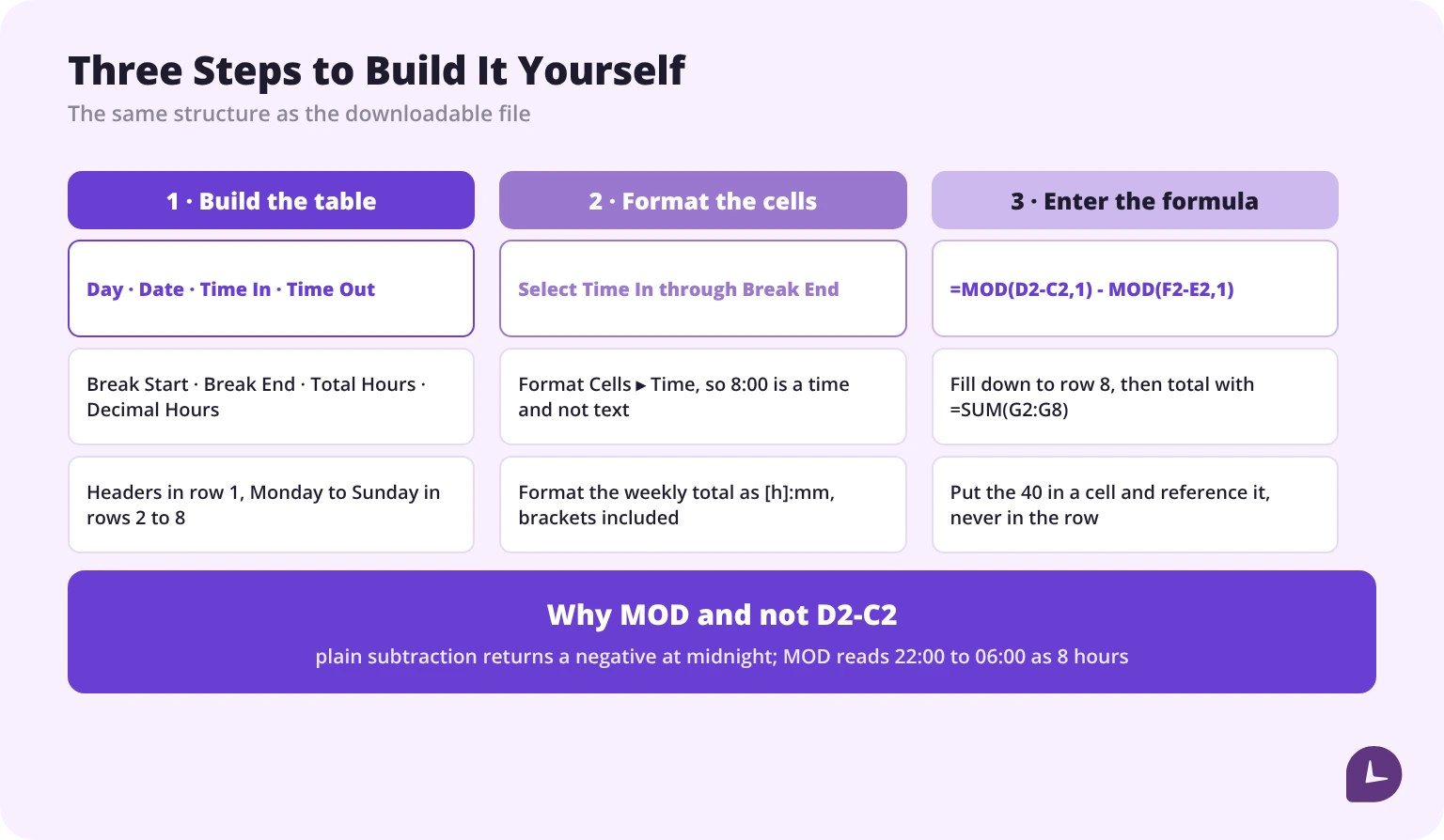
If you would rather build your own than use the file:
- Add the header. Employee name, manager, week starting date, hourly rate.
- Build the table. Columns: Day, Date, Time In, Time Out, Break Start, Break End, Total Hours, Decimal Hours. Rows Monday to Sunday.
- Format the time columns as Time. Select Time In, Time Out, Break Start and Break End, then Format Cells → Time.
- Enter the daily formulas. In Total Hours:
=MOD(D2-C2,1) - MOD(F2-E2,1), formatted[h]:mm. In Decimal Hours:=G2*24, formatted as a number. - Total the week with
=SUM(G2:G8)for the HH:MM total, and=ROUND(SUM(G2:G8)*24, 2)in H9 for the decimal one. - Split regular and overtime with
=MIN(40,H9)and=MAX(0,H9-40), then reference a settings cell instead of the literal 40 if you want to change it later.
Boost your business productivity
Track performance and streamline teamwork
How to fix the three things that break Excel timesheets
Why an overnight shift shows ##### or a negative number
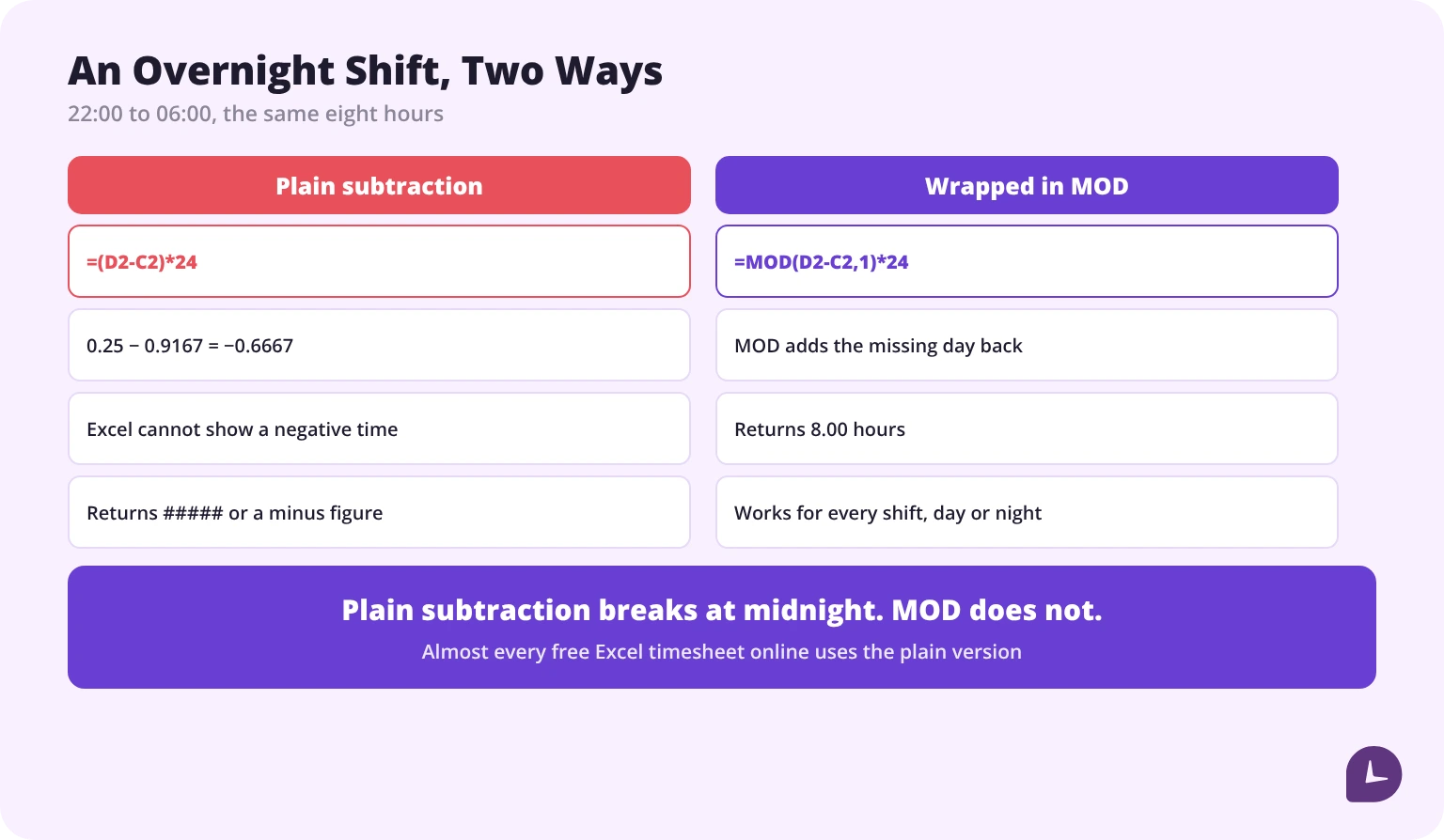
Excel stores times as fractions of a day. 22:00 is 0.9167, 06:00 is 0.25. Subtract them and you get −0.6667, which Excel cannot display as a time — hence ##### or a negative figure.
The fix: wrap the subtraction in MOD.
=MOD(D2-C2,1)*24MOD returns the remainder, which for a negative difference adds the missing day back. 22:00 to 06:00 returns 8 hours, correctly.
This one formula is the difference between a timesheet that works for shift workers and one that does not. Nurses, security, hospitality, manufacturing — any schedule that crosses midnight needs it, and almost every free Excel timesheet online uses the plain subtraction instead.
Why your weekly total shows 16:00 instead of 40
Because Excel treats 24 hours as one whole day and rolls over. Forty hours is one day and sixteen hours, so a cell formatted as ordinary time displays 16:00.
Two fixes, depending on what you want:
- Keep it as time: format the cell as
[h]:mm. The square brackets tell Excel not to roll over at 24, and the cell displays 40:00. - Convert to a number: multiply by 24 and format as a number. This is what the template does, because payroll wants decimal hours anyway.
The template includes both columns — HH:MM for reading, decimal for payroll — so you never have to choose.
Why overtime is wrong if your state has a daily rule
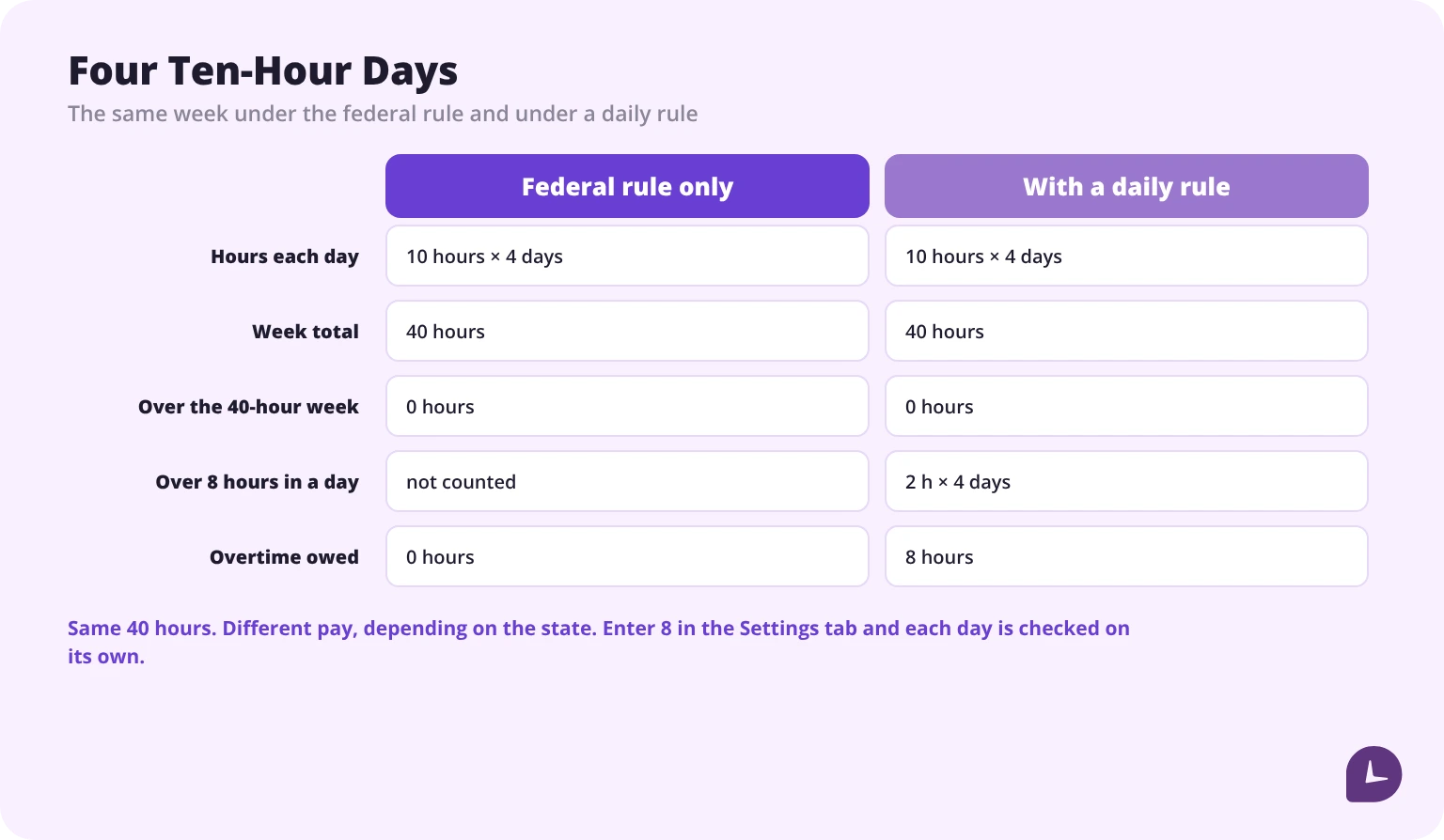
Almost every timesheet template calculates overtime as anything above 40 hours in a week. That is the federal rule under the Fair Labor Standards Act, and in most states it is the whole story.
It is not the whole story everywhere. California, for example, applies a daily overtime rule as well: hours beyond 8 in a workday are overtime, and beyond 12 in a workday are paid at double time. An employee who works four 10-hour days totals 40 hours — no weekly overtime at all — but is owed 8 hours of daily overtime.
The template handles this with a separate daily threshold in Settings, and a second one for double time. Leave both blank and the sheet behaves federally. Enter 8 and 12 and each day is checked independently, with the hours between the two paid at the overtime multiplier and anything above 12 at the double-time multiplier. What those eight hours are then worth is a second calculation, and our steps to calculate overtime pay cover it.
Rules vary by state and by contract, and some states have their own variations. Confirm your own before relying on any template, including this one. This is general information, not legal advice.
How to deduct unpaid breaks correctly
Two rules and one trap.
Rule one: record the actual break, not the policy. A template with a hard-coded 30-minute deduction overstates every day the break was shorter and understates every day it was longer.
Rule two: separate paid from unpaid. Short rest breaks are frequently paid; meal breaks frequently are not. They cannot share a column.
The trap: a break that crosses midnight on a night shift needs the same MOD treatment as the shift itself. The template’s break formula already uses it.
How to calculate gross pay in the sheet
=Regular*Rate + Overtime*Rate*OT_Multiplier + Double_Time*Rate*DT_MultiplierRegular hours at the rate, overtime hours at the rate times the multiplier, and double-time hours at the rate times the double-time multiplier. The rate and both multipliers live in Settings, as named cells — which is why the formula reads in words rather than in cell addresses.
Leave the hourly rate blank and the cell says so rather than quietly reading $0.00.
Two things this figure is not. It is gross, before tax and deductions — treat it as the basis for payroll, not the take-home. And it does not include shift differentials, bonuses, tips or commissions, which most free templates also omit and rarely say so.
Excel or Google Sheets: what changes
The same file works in both, with three differences worth knowing.
| Excel | Google Sheets | |
|---|---|---|
MOD formula | Works | Works identically |
[h]:mm format | Works | Works, but may need reapplying after import |
| Named cells across tabs | Works | Works |
| Opening the other’s file | Opens .gsheet via Drive | Opens .xlsx directly, formats occasionally shift |
| Edit history | Only with AutoSave to OneDrive | Built in, per cell |
| Offline | Yes | Only with offline mode enabled |
If you import the .xlsx into Google Sheets, check the total column first. Number formats are the thing most likely to move; formulas almost never do.
For a personal record, the edit history in Google Sheets is a genuine advantage — it is the difference between a file anyone could have rewritten and one where changes are visible.
Six mistakes that break a timesheet spreadsheet
1. Plain subtraction on an overnight shift. Covered above. The single most common failure.
2. Time cells formatted as text. Formulas return errors or zero. Format as Time before entering anything.
3. A hard-coded 40 inside every row’s formula. Changing the threshold becomes a find-and-replace across the sheet. Reference a cell instead.
4. Entering hours from memory at week’s end. No formula fixes a wrong input. Fill the sheet daily. If the punches are rounded before they reach the sheet, the 7-minute time clock rule governs how that rounding has to work.
5. Forgetting to set the hourly rate. Gross pay silently reads as zero, and nobody notices until payroll.
6. One file reused forever. Save a dated copy each week. A single rolling file has no history, and history is the point of keeping the record.
How long do you have to keep the files?
The FLSA sets two periods. Payroll records: at least three years. The records the wage calculation is based on — time cards, schedules, and a timesheet file like this one — at least two years, per the Department of Labor’s recordkeeping fact sheet. Keep everything three years and you have covered both with one rule. Save one dated file per week — timesheet-2026-week-39.xlsx — rather than overwriting a single sheet.
If you are tracking your own hours rather than a team’s, keep the same three years. The one time it matters, nothing substitutes for it. What happens to the file after that — how the hours reach payroll and what has to survive the handover — is covered in timesheets for payroll.
When a spreadsheet stops being enough
Spreadsheets hold up until one of these is true:
- More than about five people. Collecting, checking and merging files takes longer than the tracking.
- Anyone can edit and nobody can tell who did. Excel has no per-cell history without OneDrive AutoSave.
- Hours are re-keyed into payroll. Every manual transfer is a new opportunity for error.
- Approval is an email. “Looks fine” in a thread is not an approval record.
- You need last quarter and it is in someone’s Downloads folder.
At that point the question is whether the admin cost has passed the software cost. Monitask records hours as they happen, keeps breaks separate, and produces timesheets an approver signs before payroll — our online timesheets page covers it. Below that threshold, the spreadsheet is the right tool and this one is free.
Reliable employee tracking software. Clear visibility and insights into how employees work. Even remotely.
Try Monitask free for 10 days
FAQ
How do I calculate hours worked in Excel?
`=MOD(D2-C2,1)*24` gives decimal hours for any shift, including one that crosses midnight. Plain subtraction works only for day shifts and returns an error at night.
Why does my Excel timesheet show #####?
Almost always an overnight shift calculated with plain subtraction, which returns a negative time Excel cannot display. Use `MOD`. The other cause is a column too narrow for its contents.
Why does my weekly total show 16:00 instead of 40?
Excel rolls over at 24 hours. Format the cell as `[h]:mm` to display 40:00, or multiply by 24 and format as a number to get 40.00.
How do I calculate overtime in an Excel timesheet?
`=MIN(40,total)` for regular hours and `=MAX(0,total-40)` for overtime. Put the 40 in its own cell and reference it, so the threshold can be changed for a state with a daily rule.
Does this template calculate overtime for daily thresholds?
Yes. The Settings tab has a separate daily threshold and a double-time threshold. Leave both blank for the federal weekly rule, or enter 8 and 12 for states that apply a daily one. Where a week triggers both the weekly and the daily rule, the sheet applies the larger of the two rather than paying the same hour twice.
Does the Excel template work in Google Sheets?
Yes. Formulas carry across unchanged. Number formats occasionally need reapplying after import — check the total column first.
How do I deduct a lunch break in an Excel timesheet?
Add break start and break end columns and subtract them from the day: `=MOD(Out-In,1)*24 – MOD(BreakEnd-BreakStart,1)*24`. Record the actual break rather than a standard deduction.
Is there a free Excel timesheet with formulas?
The template on this page is free, and every formula is visible and editable rather than locked or hidden.
How long should I keep timesheet files?
Three years. The FLSA requires payroll records for three years and the time records behind them for two, so three covers both. Save one dated file per week rather than reusing a single sheet. If you are working out a month or a year rather than a week, see [how many hours in a month](/blog/how-many-hours-in-a-month/).