20 Productivity Software Tools Every Business Should Know

A working productivity stack in 2026 costs a ten-person team somewhere between $500 and $1,100 a month, and most of the increase over the past two years came from one place: AI seats priced per user on top of tools you already pay for. The twenty tools below are grouped by the job they do, with indicative pricing, so you can see what a stack costs before you assemble one. Not every business needs all twenty — the last section covers which ones you can skip.
Key takeaways
- Four categories cover most teams: project management, communication, documents and storage, and time tracking.
- AI is now a paid layer rather than a free feature — assistant seats are the fastest-growing line in most stacks.
- Several tools raised prices during 2025 and 2026, and per-seat AI add-ons are usually charged separately from the base plan.
- Free tiers are genuinely usable in project management, communication and automation; they are weakest in storage and time tracking.
- Tool count is not the goal. Overlapping tools cost money twice and split the data between them.
Reliable employee tracking software. Clear visibility and insights into how employees work. Even remotely.
Try Now
All 20 Tools at a Glance
Prices are indicative starting points on annual billing, excluding tax. Monthly billing typically costs 20–40% more, and AI features are frequently a separate per-seat add-on.
| # | Tool | Category | What it is for | From |
|---|---|---|---|---|
| 1 | Asana | Project management | Task and workload management with timeline views | ~$11 / user / mo |
| 2 | Trello | Project management | Lightweight visual boards for small teams | Free tier, paid from ~$5 |
| 3 | Monday.com | Project management | Customisable workflows and dashboards | ~$12 / user / mo, 3-seat minimum |
| 4 | ClickUp | Project management | All-in-one tasks, docs and goals | Free tier, paid from ~$10 |
| 5 | Slack | Communication | Channel-based messaging and integrations | Free tier, paid from ~$9 |
| 6 | Microsoft Teams | Communication | Chat, calls and files inside Microsoft 365 | Included in M365 plans |
| 7 | Zoom | Communication | Meetings and webinars | Free tier, paid from ~$15 |
| 8 | Monitask | Time tracking | Automatic hours, activity and proof of work | $6.49 / user / mo |
| 9 | Google Workspace | Docs and storage | Email, docs and drive in one subscription | ~$14 / user / mo |
| 10 | Notion | Docs and storage | Wiki, docs and lightweight databases | Free tier, paid from ~$12 |
| 11 | Dropbox Business | Docs and storage | File sync, versioning and sharing controls | ~$18 / user / mo |
| 12 | Zapier | Automation | No-code connections between apps | Free tier, paid from ~$20 |
| 13 | Make | Automation | Visual automation with branching and conditions | Free tier, paid from ~$10 |
| 14 | AI assistant | AI | Drafting, summarising, research and analysis | Free tiers, business seats ~$20–30 |
| 15 | AI meeting notetaker | AI | Transcripts, summaries and action items | Free tiers, paid from ~$10 |
| 16 | AI inside your existing tools | AI | Copilot, Gemini, ClickUp Brain, Asana AI | Usually a per-seat add-on |
| 17 | Todoist | Personal productivity | Personal task capture and prioritisation | Free tier, paid from ~$5 |
| 18 | Grammarly | Personal productivity | Writing checks across apps | Free tier, business from ~$15 |
| 19 | Miro | Collaboration | Digital whiteboard for planning and workshops | Free tier, paid from ~$10 |
| 20 | Tableau | Analytics | Dashboards over business data | Quote-based, viewer seats cheaper |
A. Project Management
If you are comparing this category in depth, our guide to project management tools goes further on the trade-offs.
1. Asana
Asana handles task assignment, dependencies and workload balancing well, and its timeline and workload views are the reason managers pick it over lighter tools. Integrations with Slack, Google Workspace and Zoom are solid. Note that Asana has raised prices on multiple tiers over the past two years, and some functions people expect — timesheets and budgets among them — sit in paid add-ons.
2. Trello
Trello is boards, lists and cards, and it is deliberately not more than that. For a small team tracking a handful of workstreams it is the fastest thing to set up and the easiest to get people to actually use. It runs out of room when you need dependencies, reporting or resource views.
3. Monday.com
Monday.com is the most visual of the four and the most configurable without code. Automations, dashboards and custom fields let you shape it to an existing process rather than adopting someone else’s. Two things to check: paid plans start at a three-seat minimum, and automation-heavy setups can push you into a higher tier than expected.
4. ClickUp
ClickUp bundles tasks, docs, goals and whiteboards into one workspace, and its free tier is unusually generous. The trade-off is setup: it rewards teams that design their structure deliberately and frustrates teams that do not. Its AI features are a separate per-seat add-on.
Boost your business productivity
Track performance and streamline teamwork
B. Communication
5. Slack
Slack replaced internal email for a reason, and its integration library is still the deepest in the category. The free tier limits message history, which is the constraint most growing teams hit first. Channel sprawl is the other one — worth a naming convention before it gets away from you.
6. Microsoft Teams
If your company already pays for Microsoft 365, Teams is effectively included, which settles the decision for most organisations on that stack. Administrative controls and compliance features are stronger than the alternatives; the interface is less loved.
7. Zoom
Zoom remains the default for meetings with people outside your company, which is the case that matters — internal calls can happen wherever your chat tool lives. Breakout rooms, recording and transcription are reliable.
C. Time Tracking
8. Monitask
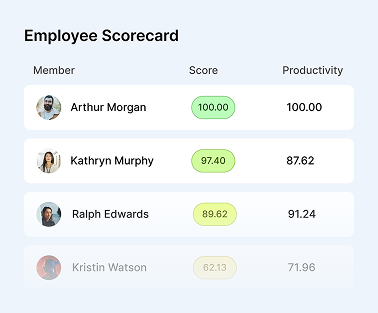
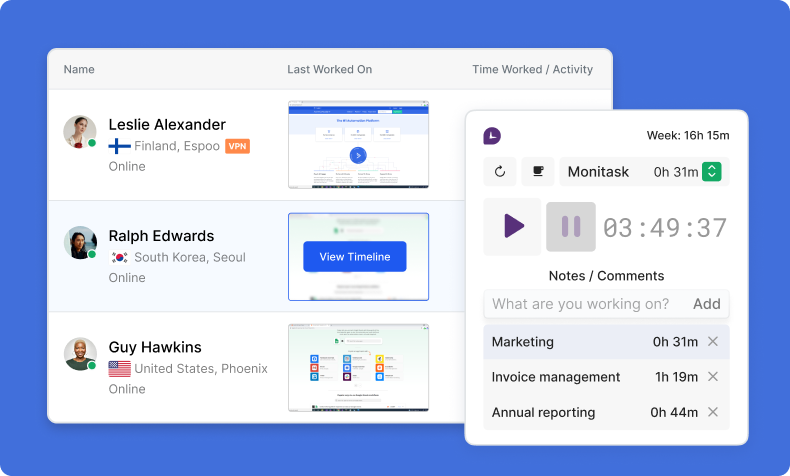
Monitask records how work hours are actually spent: automatic time tracking, optional proof-of-work screenshots, app and website logging, and project time for billing. Tracking runs only while an employee is clocked in, and keystrokes are not recorded. Reports go to both sides — managers see team totals, employees see their own, through employee productivity reporting.
Best for: remote, hybrid and billable teams that need defensible hour records rather than self-reported ones.
Pricing: from $6.49 per user per month on annual billing, 10-day free trial, no card required. Higher screenshot frequency is a paid add-on.
Limitation: it is not a project management tool or an HRIS — it feeds hours into those, it does not replace them.
D. Documents and Storage
9. Google Workspace
Gmail, Drive, Docs, Sheets and Meet in one subscription, with real-time collaboration that still sets the standard. For most small businesses this is the foundation the rest of the stack sits on. Gemini features are bundled into some tiers and charged on others — check which tier you are on.
10. Notion
Notion is a flexible workspace for documentation, wikis and light project tracking. Its strength is that you can shape it into whatever you need; its weakness is the same thing, since an unmaintained Notion becomes a place documents go to be lost. Assign an owner.
11. Dropbox Business
Where Dropbox still wins is file sync at scale, version history and granular sharing permissions — particularly for large media files that make browser-based tools struggle. If your work is mostly documents, Google Workspace already covers this and Dropbox is a duplicate cost.
E. Automation
12. Zapier
Zapier connects thousands of apps without code, and for most teams that is enough: move a form response into a spreadsheet, post a notification when a deal closes, log tracked hours into a report. Pricing scales with task volume, so a successful automation gets more expensive as it runs more often. Tools with their own time tracking integrations can skip the middle layer entirely.
13. Make
Make is the more technical option, with a visual builder that handles branching, conditions and multi-step logic Zapier finds awkward. Better value at high volume, steeper to learn.
F. The AI Layer
This is the category that did not exist in a business stack three years ago and now sits in most of them. Treat it as three separate decisions rather than one.
14. A general AI assistant
Drafting, summarising, research, analysis and code help, through one interface. ChatGPT, Claude and Microsoft Copilot are the mainstream business options. Free tiers are usable for individuals; business plans add administrative controls, data handling commitments and, importantly, an agreement that your inputs are not used for training. If you are deploying across a team, that last point is the one to check before the feature list.
15. An AI meeting notetaker
Tools like Otter and Fireflies join calls, transcribe them and produce summaries with action items. The productivity gain is real and mostly comes from one thing: nobody has to take notes, so everyone can participate. Two cautions — check the consent requirements for recording in your jurisdiction, and decide where transcripts are stored before you have three hundred of them.
16. AI inside the tools you already pay for
Copilot in Microsoft 365, Gemini in Google Workspace, ClickUp Brain, Asana AI. These are almost always priced per seat on top of the base plan, which is where stack costs have quietly grown. Before adding one, check whether it duplicates a general assistant you are already paying for — many teams end up buying the same capability twice.
G. Personal Productivity and Collaboration
17. Todoist
Personal task capture that stays out of the way. It works best as a layer beneath team project management, not instead of it: the tasks only you care about do not belong in a shared board.
18. Grammarly
Writing checks across email, docs and browser. Useful across a team for consistency in client-facing writing; consider the data handling terms before deploying it on sensitive documents.
19. Miro
A digital whiteboard for workshops, planning sessions and diagramming. It earns its place for distributed teams doing genuine collaborative thinking; it becomes shelfware for teams that mostly run status meetings.
H. Analytics
20. Tableau
For businesses with data spread across systems, Tableau turns it into dashboards people will actually look at. It is an investment in both licensing and setup, and viewer seats cost much less than creator seats — a detail worth knowing before you price it for the whole company.
What the Stack Actually Costs
Here is the number nobody publishes. For a ten-person team, a full stack across all these categories lands somewhere around $500 to $1,100 a month, depending on how many free tiers you use and how many AI seats you buy.
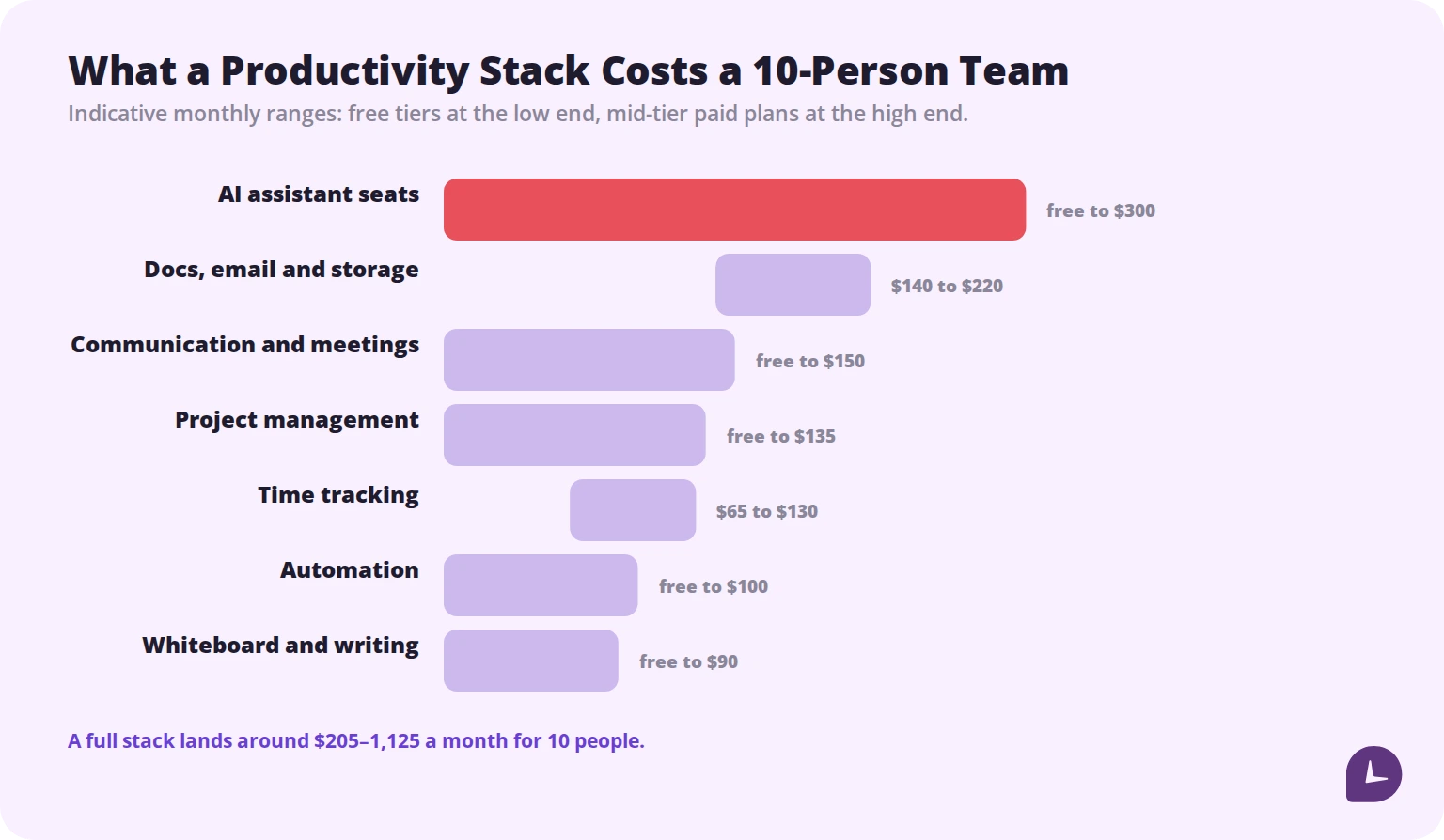
Three things drive the spread. Free tiers in project management, communication and automation are genuinely usable, which can take three categories close to zero. Storage and email have no meaningful free option at business scale. And AI seats, at roughly $20 to $30 per person, are now capable of costing more than every other category combined if you add them everywhere.
The mistake to avoid is duplication. Notion and Google Docs, Slack and Teams, ClickUp and Asana, a general AI assistant and three per-seat AI add-ons — each of these pairs solves the same problem twice, at double the price, with your data split between them.
You Probably Do Not Need All 20
| Stage | Minimum viable stack | Add next |
|---|---|---|
| Solo or 2–3 people | Google Workspace, Trello or ClickUp free, Zoom free | An AI assistant |
| 5–15 people | Add Slack, a paid project tool, Monitask if billing by the hour | Zapier, an AI notetaker |
| 15–50 people | Add paid storage, Miro, AI seats where they are actually used | Make, Tableau if data is spread across systems |
| 50+ | Consolidation matters more than addition | Audit overlap before buying anything new |
The pattern to notice: after about fifteen people the useful move is usually removing a tool rather than adding one.
Maximize productivity of your business.
Start Your 10-Day Trial
How to Choose
- Start from the pain, not the category. If nothing is currently broken about how you handle documents, you do not need a documents tool.
- Check what your existing subscriptions already include. Microsoft 365 includes Teams. Google Workspace includes video calls and storage. Many teams buy these twice.
- Trial with a real project, not a test one. Tools look equivalent in a demo and differ enormously under a real deadline.
- Confirm the integrations you depend on, specifically, by name, before committing.
- Price it at double your current headcount. Per-seat pricing that feels cheap at ten people is a budget line at twenty-five.
Once the stack is settled, the gains come from how it is used — our productivity hacks guide covers the habits that make the difference.
Key Takeaways
The stack is a means, not a scoreboard. Four categories cover most of the value: project management, communication, documents, and time tracking. Everything else is situational, and AI seats are the line item to watch, because they are the easiest to buy twice.
Time tracking is the category most teams skip and then need — the moment you bill by the hour, run a distributed team, or have to prove capacity, self-reported hours stop being good enough. Monitask records them automatically, with activity and project breakdowns. Try it on a 10-day free trial, no card required.
> Pricing shown is indicative, based on published starting rates on annual billing, and excludes tax and add-ons. SaaS pricing changes frequently — confirm current rates with each vendor before budgeting.
Reliable employee tracking software. Clear visibility and insights into how employees work. Even remotely.
Try Monitask free for 10 days
FAQ: Smart Productivity Solutions for Modern Teams
How much does a productivity stack cost?
For a ten-person team, roughly $500 to $1,100 a month for a full stack across all categories. Free tiers in project management, communication and automation can reduce that substantially; AI assistant seats at $20 to $30 per person are what push it toward the top of the range.
Which productivity tools are worth paying for first?
Email and storage, since free options do not work at business scale, and whichever tool addresses your loudest current problem. Project management and communication have usable free tiers that many small teams stay on for a year or more.
Do I need AI tools in my stack in 2026?
Most teams get real value from one general assistant and, if they run a lot of calls, a notetaker. What is worth questioning is per-seat AI add-ons inside every tool you own — those frequently duplicate a capability you already pay for elsewhere.
How many productivity tools is too many?
When people cannot tell you which tool holds the current answer, you have too many. Overlap costs money twice and splits the data, which is worse than the money.
Do these tools work for small businesses?
Yes. Most have free tiers or small-team plans, and a two-person business running Google Workspace, a free project tool and video calls has a functioning stack at almost no cost.